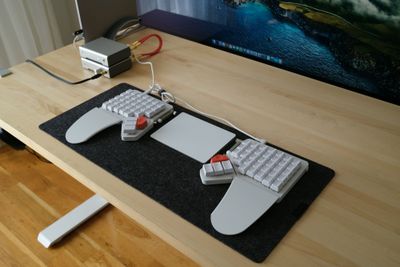
Review of the MoErgo Go60 Keyboard
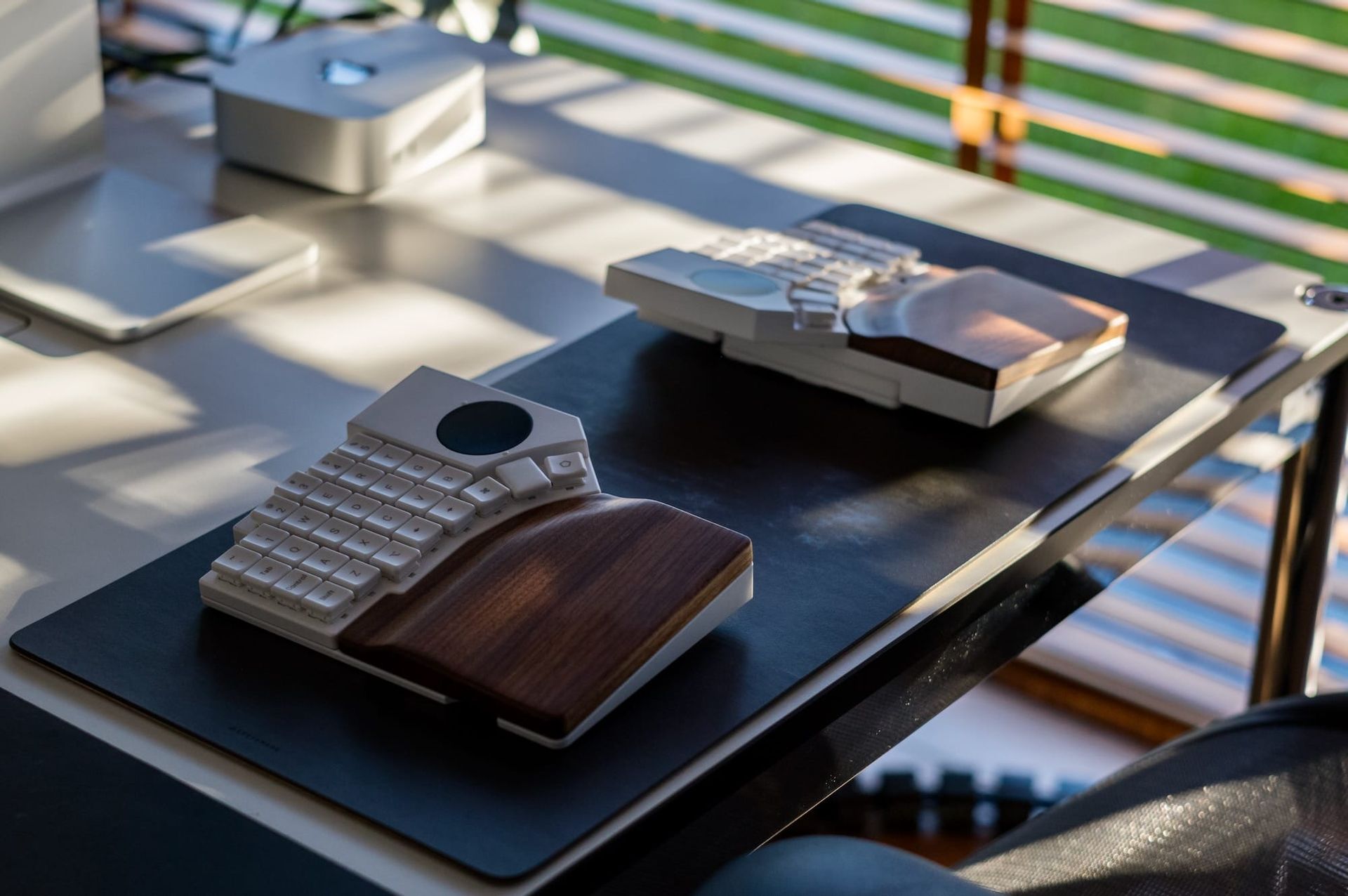
It’s time for another keyboard review.
Last year, I reviewed the MoErgo Glove80. It was and is still one of my most visited blog posts.In that review, I compared it to the Kinesis Advantage360 Pro and wrote about the travel case, design, switches, tenting, ZMK configuration, community, and how it fit into my daily work.
Now MoErgo has a new keyboard: the Go60.
MoErgo this time designed it with a different mindset. It is trying to solve a different problem: how can you have a proper split ergonomic keyboard when you're traveling a lot?
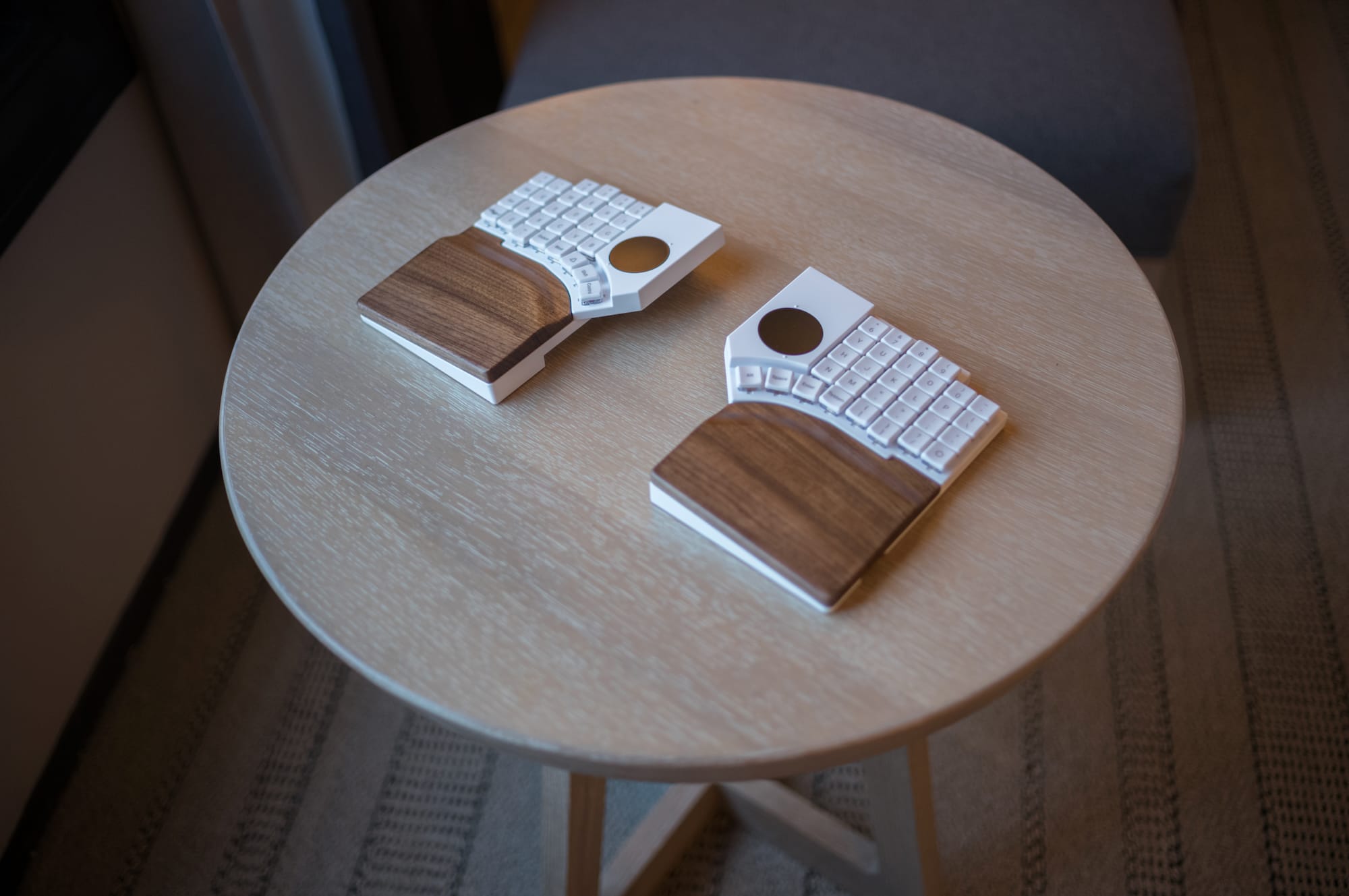
Even though I've mostly work from home, I work from different places from time to time. The problem with ergonomic keyboards is that most of them are not really portable. They are bulky, and because of the split design it's very hard to pack it.
So I got a new Go60. This is a very lengthy article, get your favorite coffee and take time your time!
Full disclosure: When I decided to buy it, MoErgo was kind enough to send me unit for testing, and I was free to write whatever I want. Second, readers of this blog know that I'm a keyboard nerd, and that I review all sorts of keyboards. Check my other blog posts to see more. I've paid for additional switches and keycaps.
What is the Go60?
If you have used a split keyboard before, you already know the basics. The keyboard is split into two halves, which allows you to position your hands more naturally. You don’t have to keep your wrists angled inward like you do with a normal keyboard.
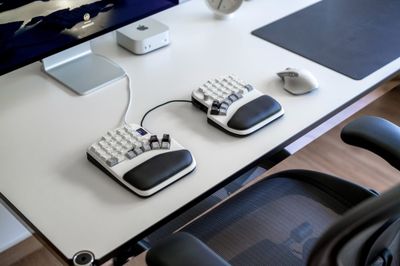
The Go60 is a 60-key split keyboard with a columnar layout, a small thumb cluster, low-profile mechanical switches, and unlike other keyboards, comes with two built-in 40mm trackpads (this is the interesting part). MoErgo also built tenting directly into the keyboard, with six settings between 6.2 and 17 degrees (more on this later). That part is the best execution of adding tilting to a keyboard I've seen so far.
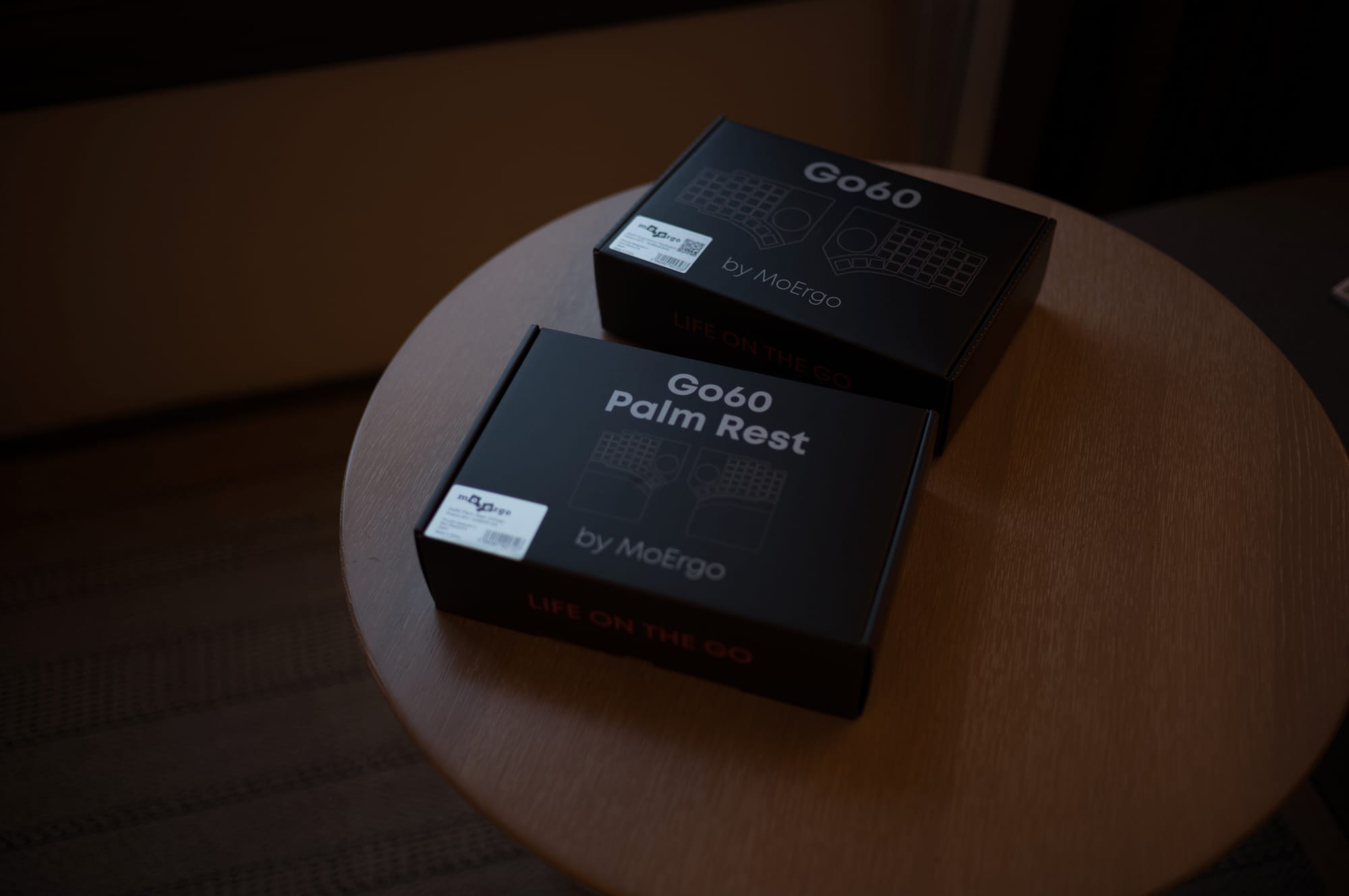
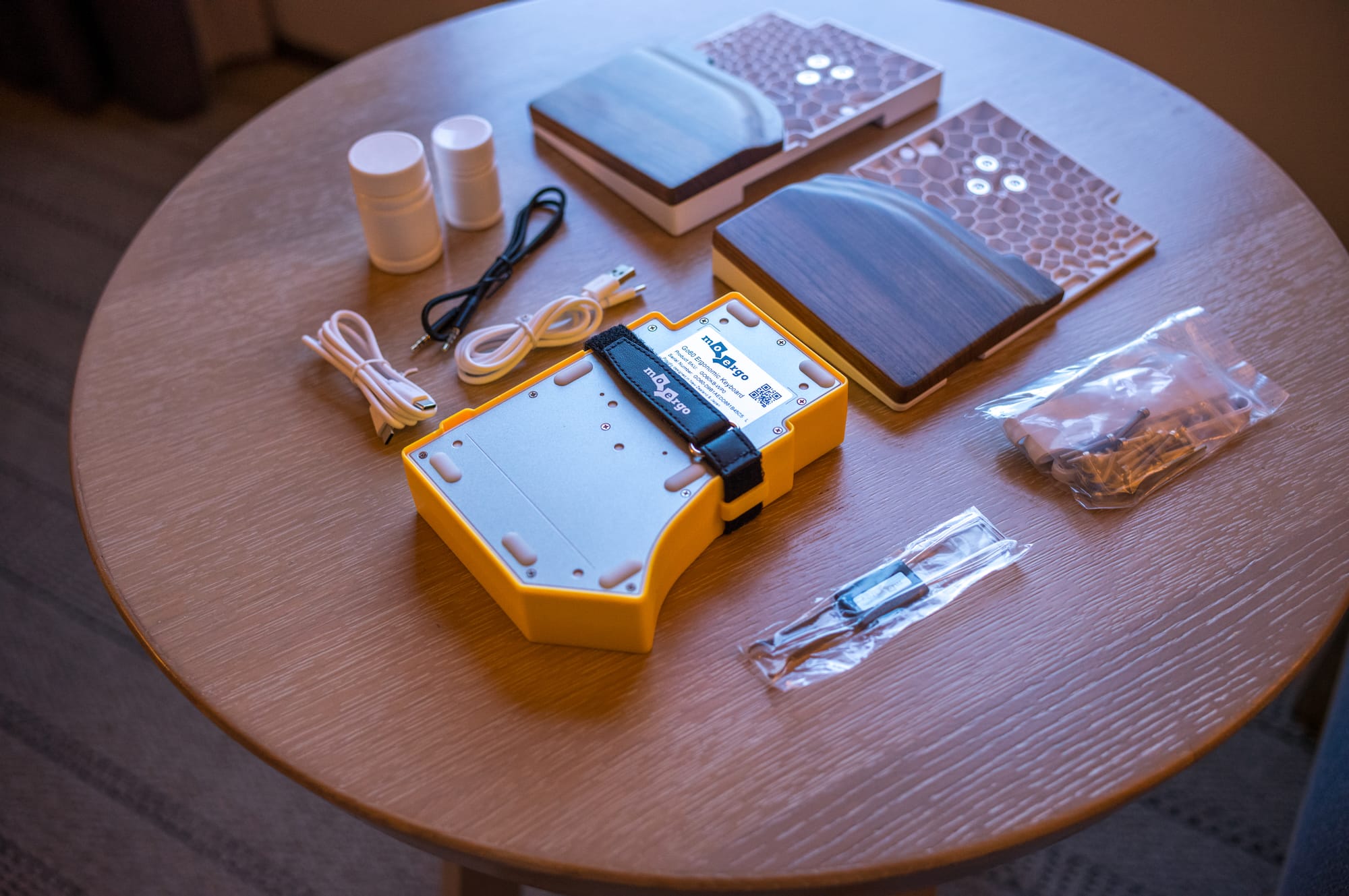
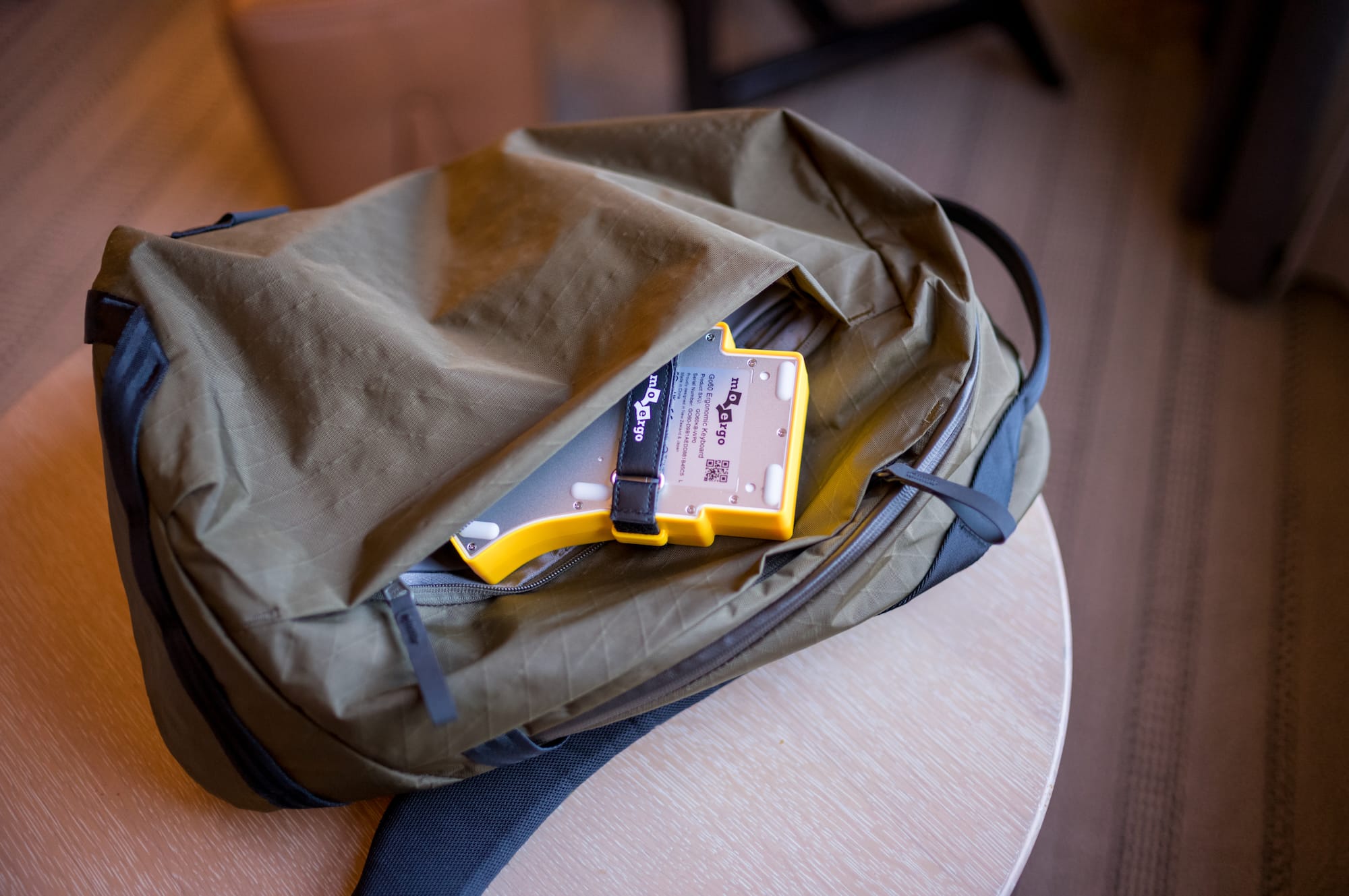
Again, the most important part is that the Go60 is built around portability. The whole keyboard packs into a compact case (MoErgo lists as 178 x 135 x 43 mm). That’s the main difference compared to larger ergonomic keyboards. The Glove80 also came with a case, and I liked the case, but I also wrote that it was not really travel-friendly because it was huge, almost like a 13-inch laptop case. It's definitely not a travel friendly keyboard. The Go60 is on another level
Why I wanted to try it
Of course, readers of this site knows that I love using different keyboard, and also reviewing them. I’m already used to split ergonomic keyboards. I used the ZSA Moonlander, Kinesis Advantage2, then the Kinesis Advantage360 Pro, and later the Glove80. I even designed my own keyboard, the Hyper Elora. So I’m not coming to the Go60 as someone who wants to learn split keyboards from scratch.
For me, the interesting part was whether I can use an ergonomic keyboard outside of my main desk setup. That’s always the problem. I'm pretty good at using my MacBook's keyboard. It's like switching from walking to using a bike. But, I miss my bespoke split setup, such as layers and various shortcuts. I've kinda get used to it and except the same layout on all my keyboards.
Design and build
People who know me know that I care about design. Not just how something looks, but how it behaves. The small details matter. The edge, the weight, how it sits on the table, how it sounds, how it fits into the rest of the desk.
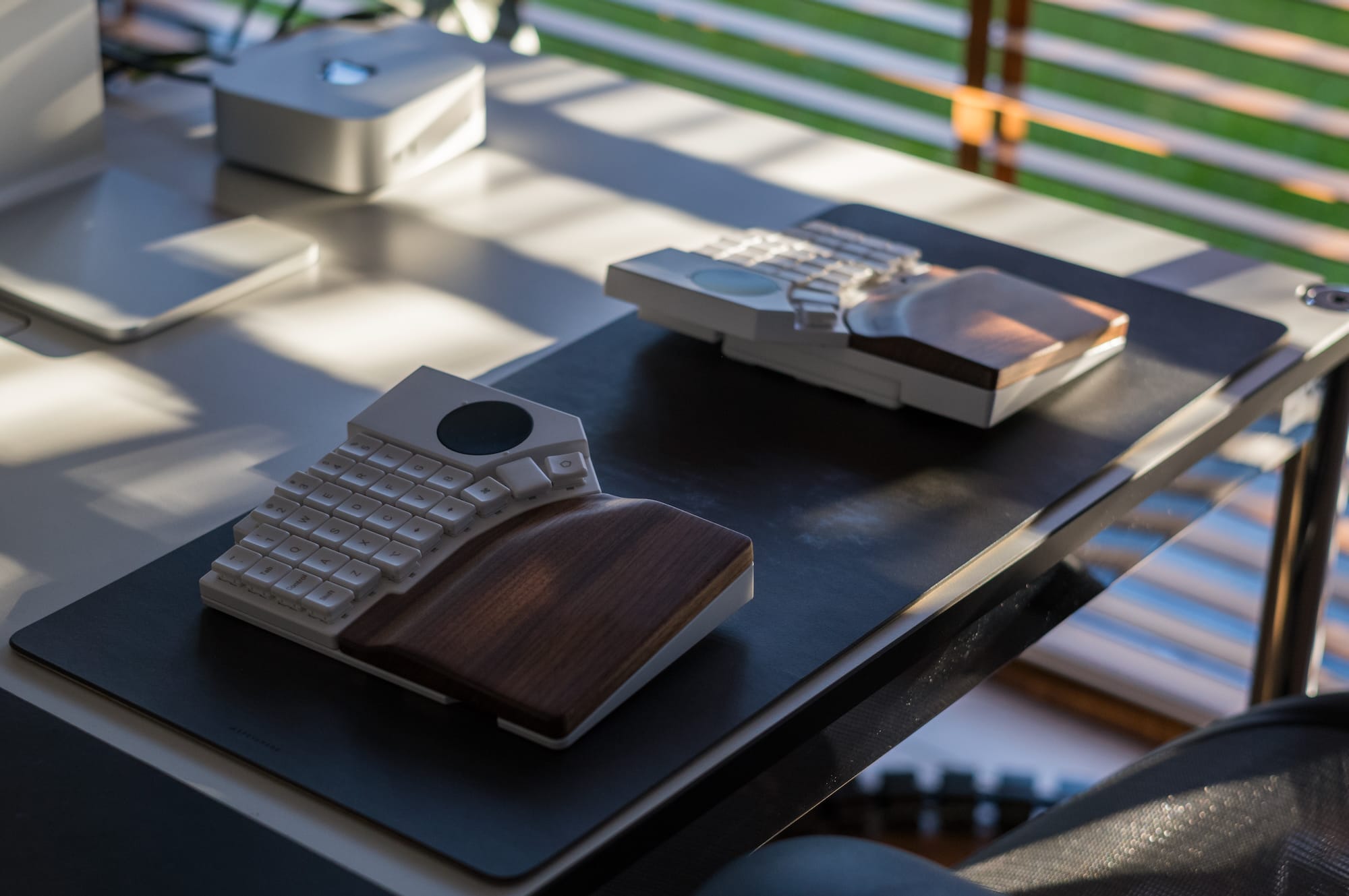
The Go60 has a very different design language compared to the Glove80. The Glove80 has that large sculpted shape with a concave keywell. The Go60 is much flatter and more compact. It has to be, because portability is the point here.
Also with Glove80, it had very sharp edges. It wasn't as refined as the Go60. With Go60, they listened to the customers and also significantly improved the design. It's definitely smoother all around, feels more premium. That was one of my issues with Glove80.
Keycaps and switches
The Go60 uses low-profile Kailh Choc v1 switches. MoErgo currently lists two switch options for the Go60: Cherry Blossom, a 30gf silent linear switch, and Plum Blossom, a 45gf silent linear switch. Both are MoErgo-exclusive switches. Because I previously used something similar to Cherry Blossom (The Red Pro's), I've discovered that 30gf actuation force isn't for me. I constantly trigger keypresses that I didn't meant to. Again it's very personal I know, but my tipping point is 40-45gf and above.
I've used the Plum Blossom now for almost a month since I've got the keyboard. First of all, they are light, but also feel solid. Just in my alley. They also are silent. You don't hear anything at all! When I was at the office last month, it was superb, because I wasn't bothering anyone at all.
One thing that I still don't like, which is also personal, I'm not a Linear switch guy. I love Tactile switches. I need to feel the bump while switching. The best part of Go60 is that it's hot-swappable. The Glove80 wasn't unfortunately.
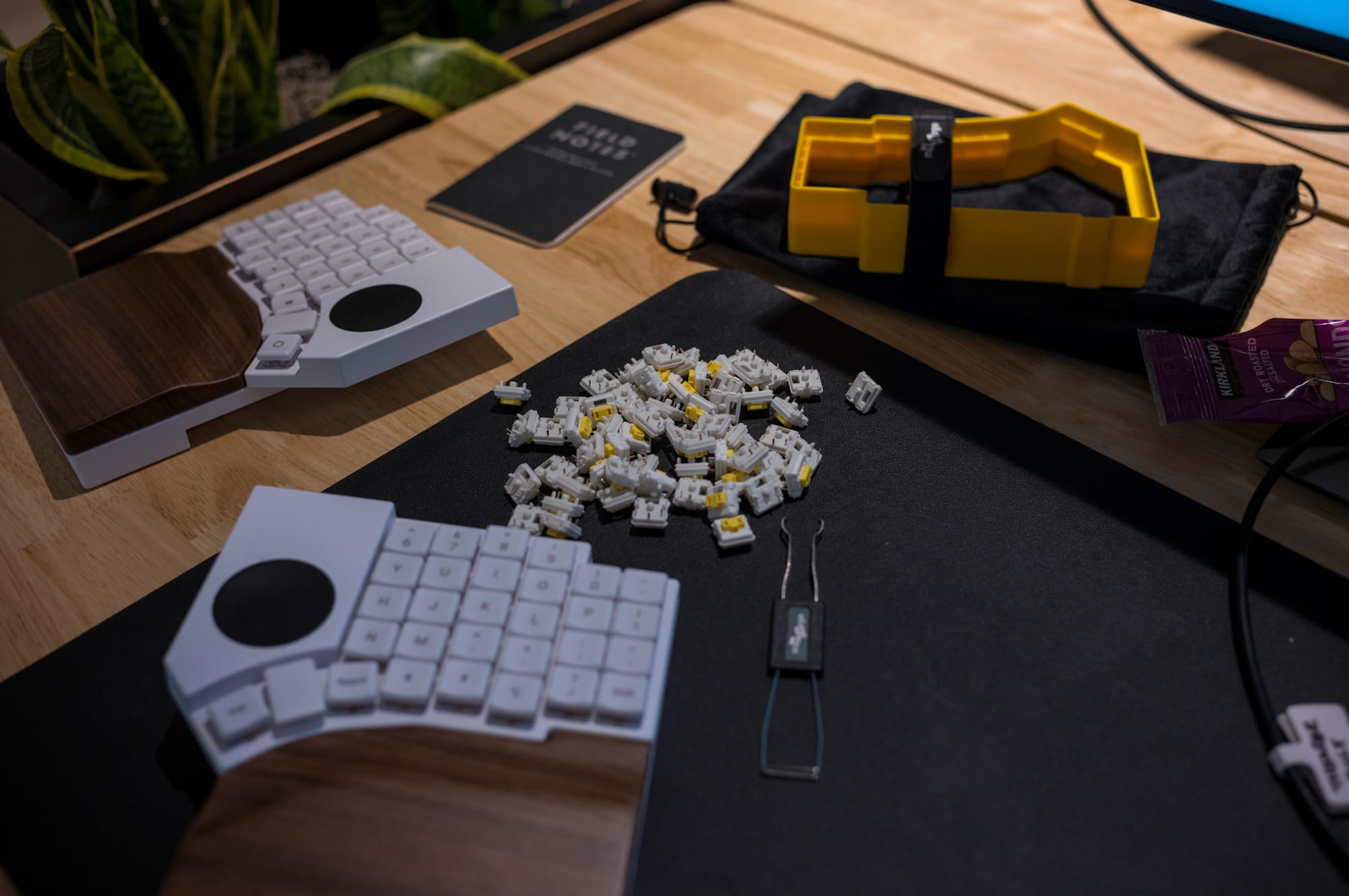
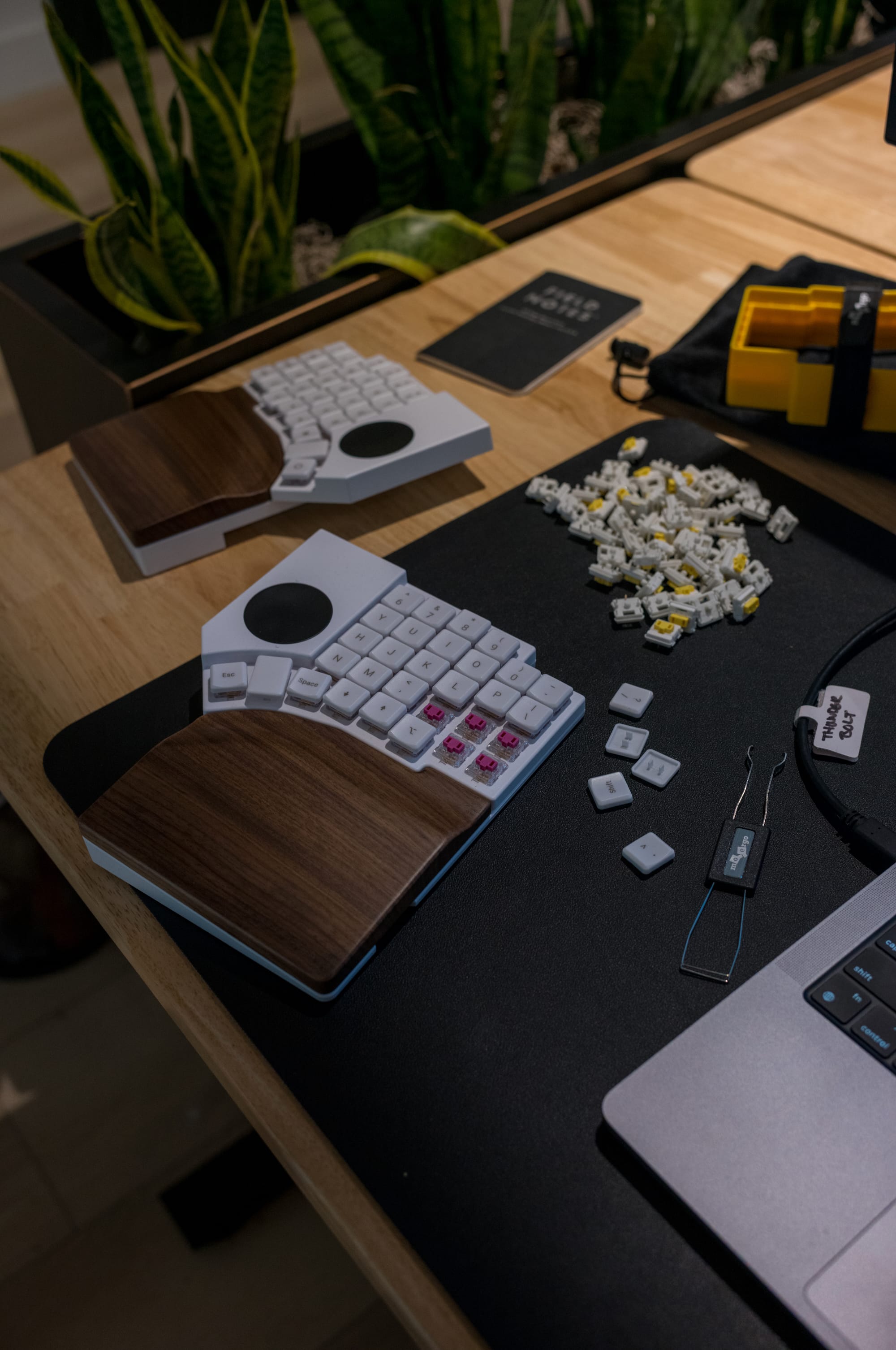
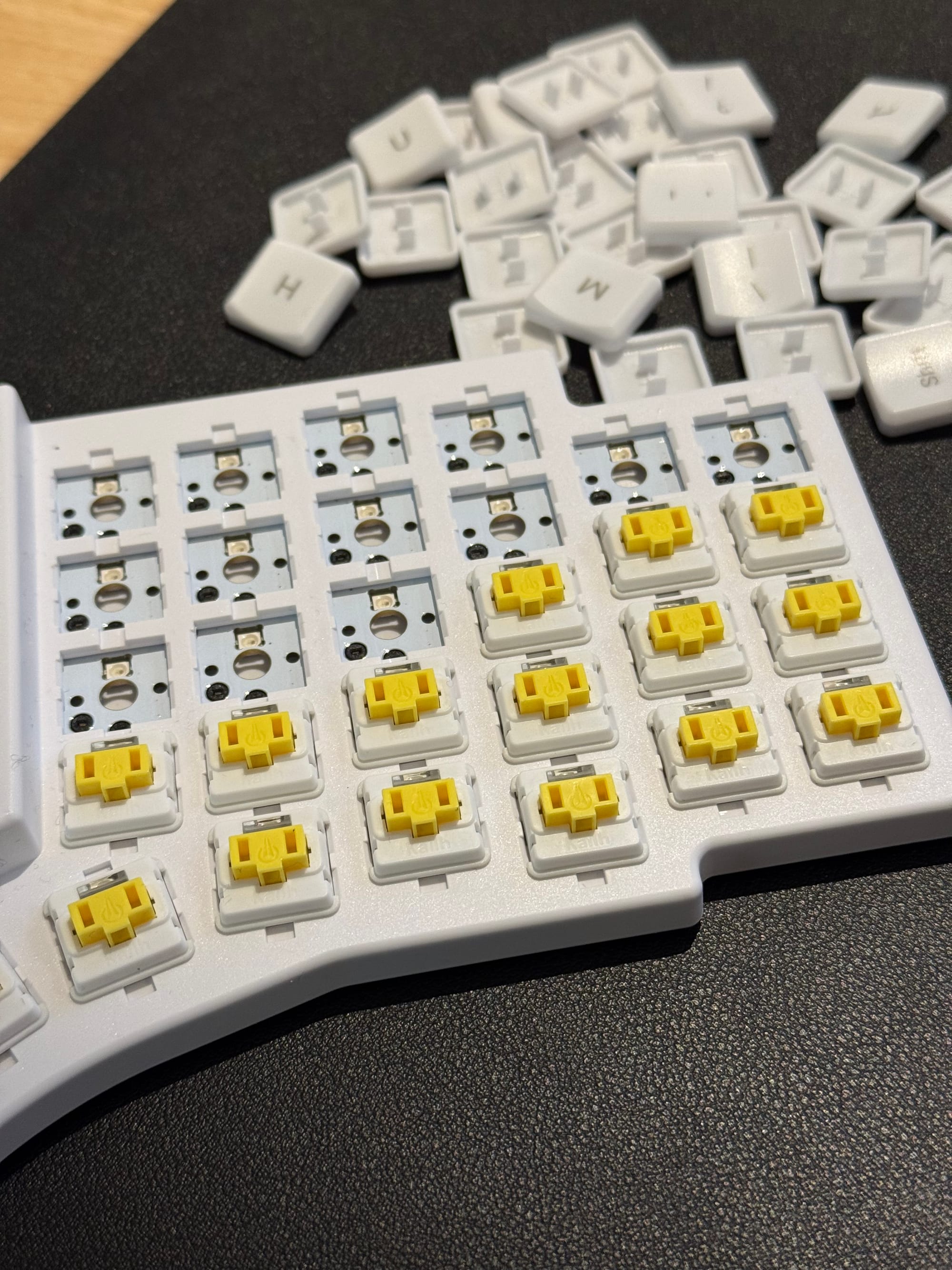
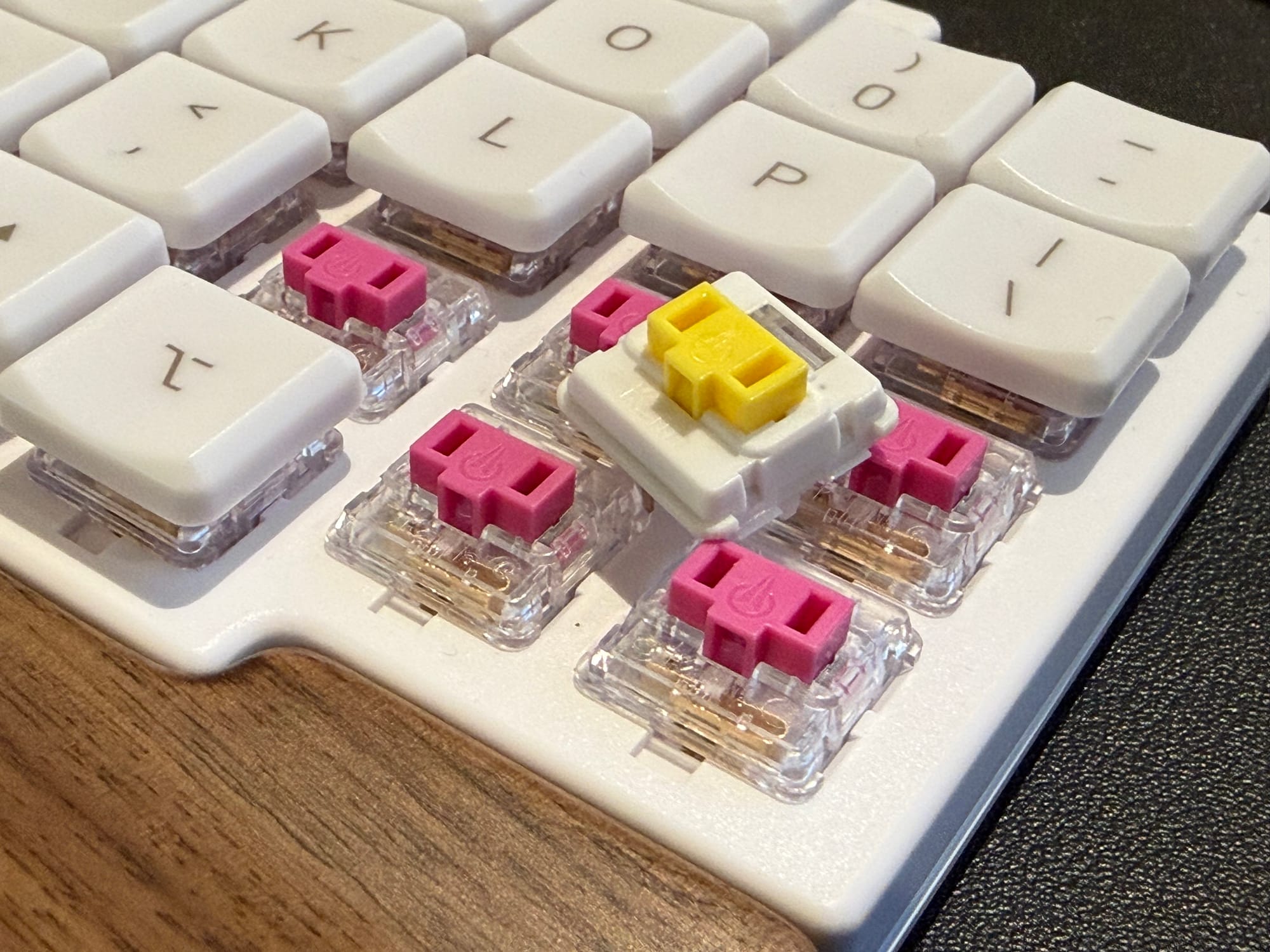
What does it mean? It means I can just swap my switches with something I love. And that's exactly I did. After talking to Go60, they shared with me a tactile switch I could use (I don't know the name unfortunately). And I love it. It's currently my daily.
I also ordered some Choc Sunsets after trying them out on a friend's keyboard (Thank you Max!). I immediately loved them. Giving the fact the Go60 supports swapping them I also ordered a set of Sunset switches. They did not arrived yet, so I don't have much to share unfortunately.
Here is a video of me typing on the silent switches:
The Tactile switches are really this silent. You barely hear them.
The touchpads
This is probably the most interesting part of the Go60. There are two integrated touchpads, one on each half. MoErgo’s idea is simple: minimize hand movement and leave your mouse at home.
I like the idea. But based on my experience, I think it's quite not there. The biggest reason is that I'm spoiled by how superiors Apple trackpads are. Trackpads are hard to get right. Either the surface is too small, the acceleration feels wrong, clicking is annoying, scrolling is bad, or palm rejection is not good (which is not the case for Go60 of course).
I tried to tweak it, but it's also not so easy. First sensitivity can be only configured by editing it via ZMK, which means flashing the keyboards. It's not easy and time consuming. Second, there are no proper settings either. With Apple (obviously because they own the full stack), it exposes more knobs. There is an app called Mos, but that only allows you to tweak the scrolling. It allows you to add sliding scroll, the way Apple trackpad works. But then every device attached to your MacBook now inherits these settings. But whatever I tried, I think I couldn't make it just right.
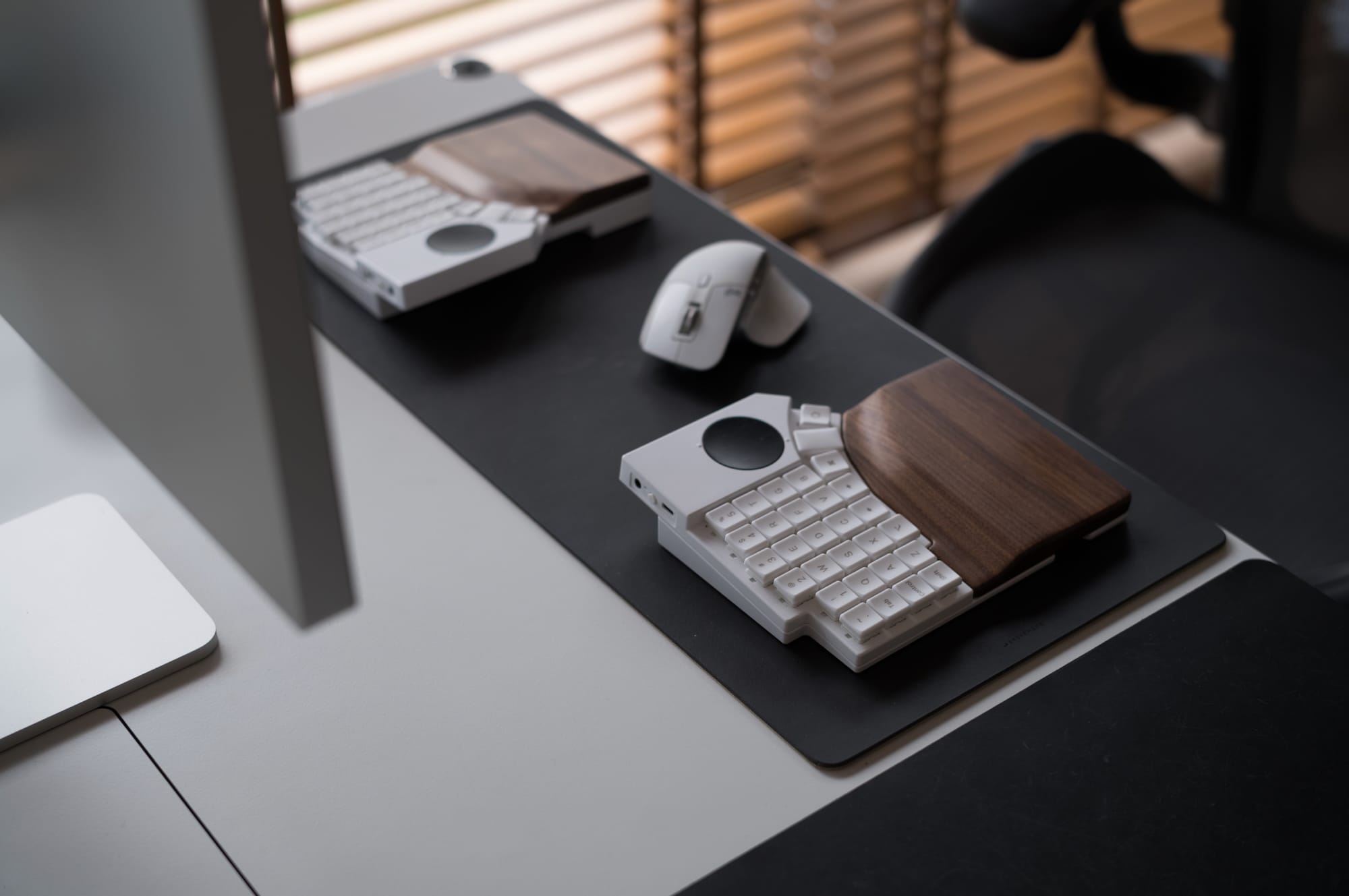
It's pretty good for moving the mouse, but for example double click doesn't exist (or is done differently). Or you can't scroll like with two fingers like you would do with the Apple Trackpad.
This isn't a Go60 limitations of course, every single keyboard on the market, that isn't Apple, will have the same limitations. There is not much you can do. Some people get used to it. And I think the trackpads are nice if you're on the go and want a portable setup, but they are not comfortable to use.
Nit: I wish they were modular and you could swap them with encoders. I love encoders, and I love to have them. But I've asked this question to Moergo and they said this to me:
a more modular approach would likely have increased the overall height and reduced portability, which were both major priorities for the Go60.
So I think that makes sense. An encoder isn't small and it would be awkward having that as a modular option. You would definitely sacrifice portability.
Tenting
In my Glove80 review, I wrote that the Glove80’s tenting was powerful, but not very user-friendly. You could customize it a lot, but it required rods, screws, and some patience (which I didn't have). The Go60 completely changed it. They executed it excellently honestly. Until you try it out you don't know how good it is.
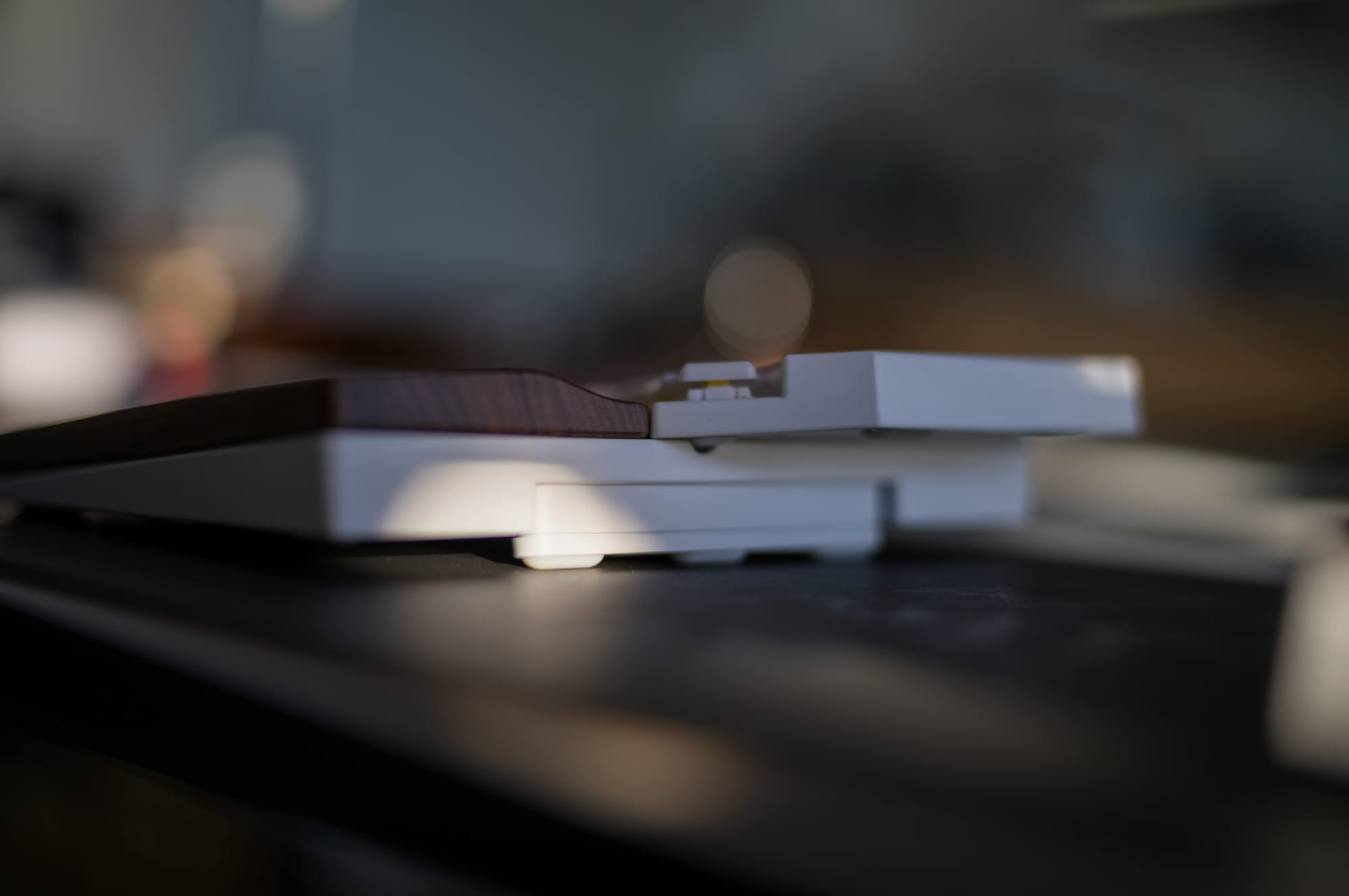
First of all, it's totally modular, just like their palm rests. You can attach it via magnets and then once you're done you can take them out. The tenting pieces can be attached to the keyboard itself, but also to the palm wrist dock. The nice thing is, it also works on both the keyboard, and also on the palm rest. Here is a video:
Here are a few more photos. The beauty of this design is you can have multiple different tenting pieces and use the ones you like the most:
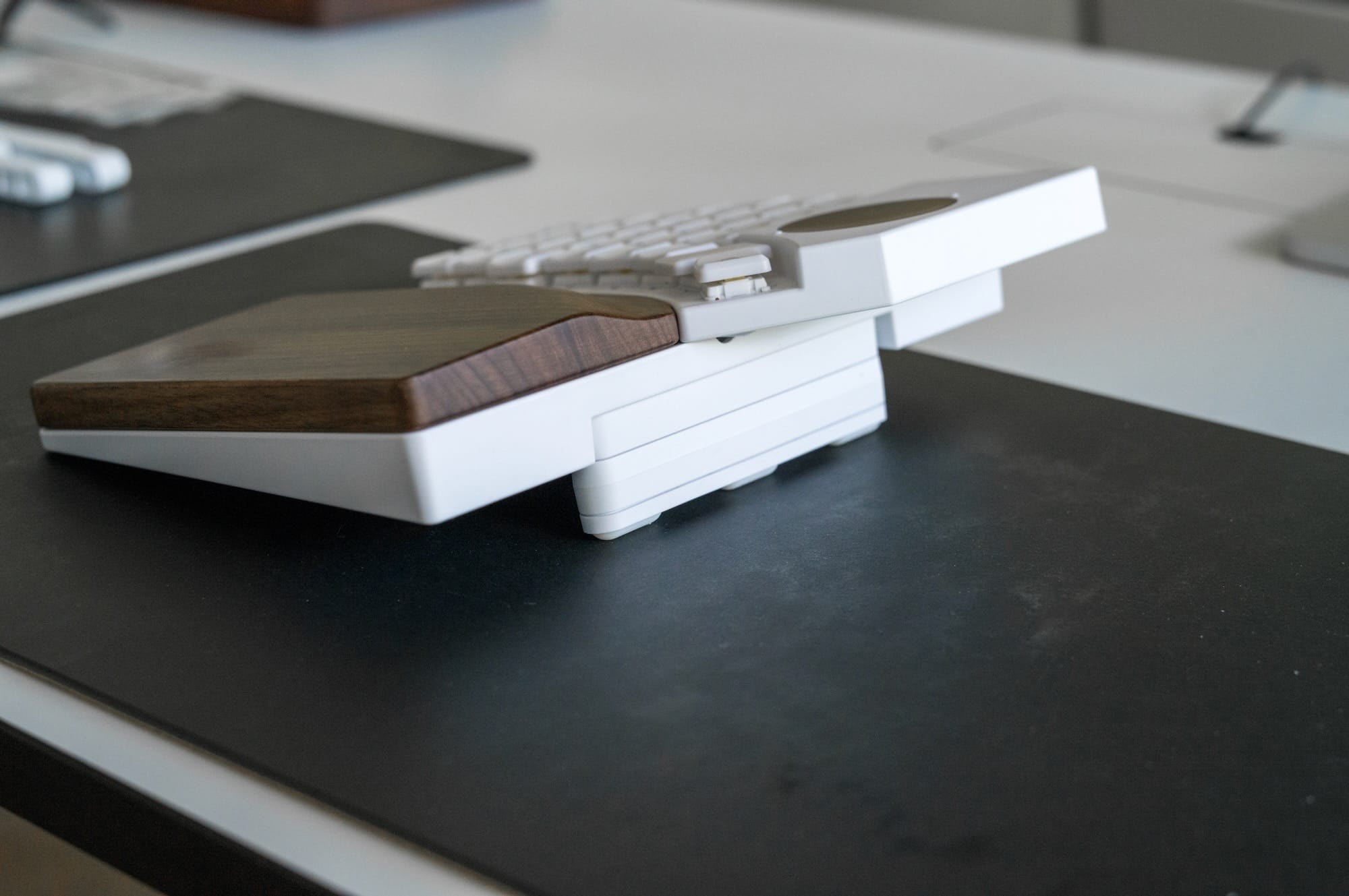
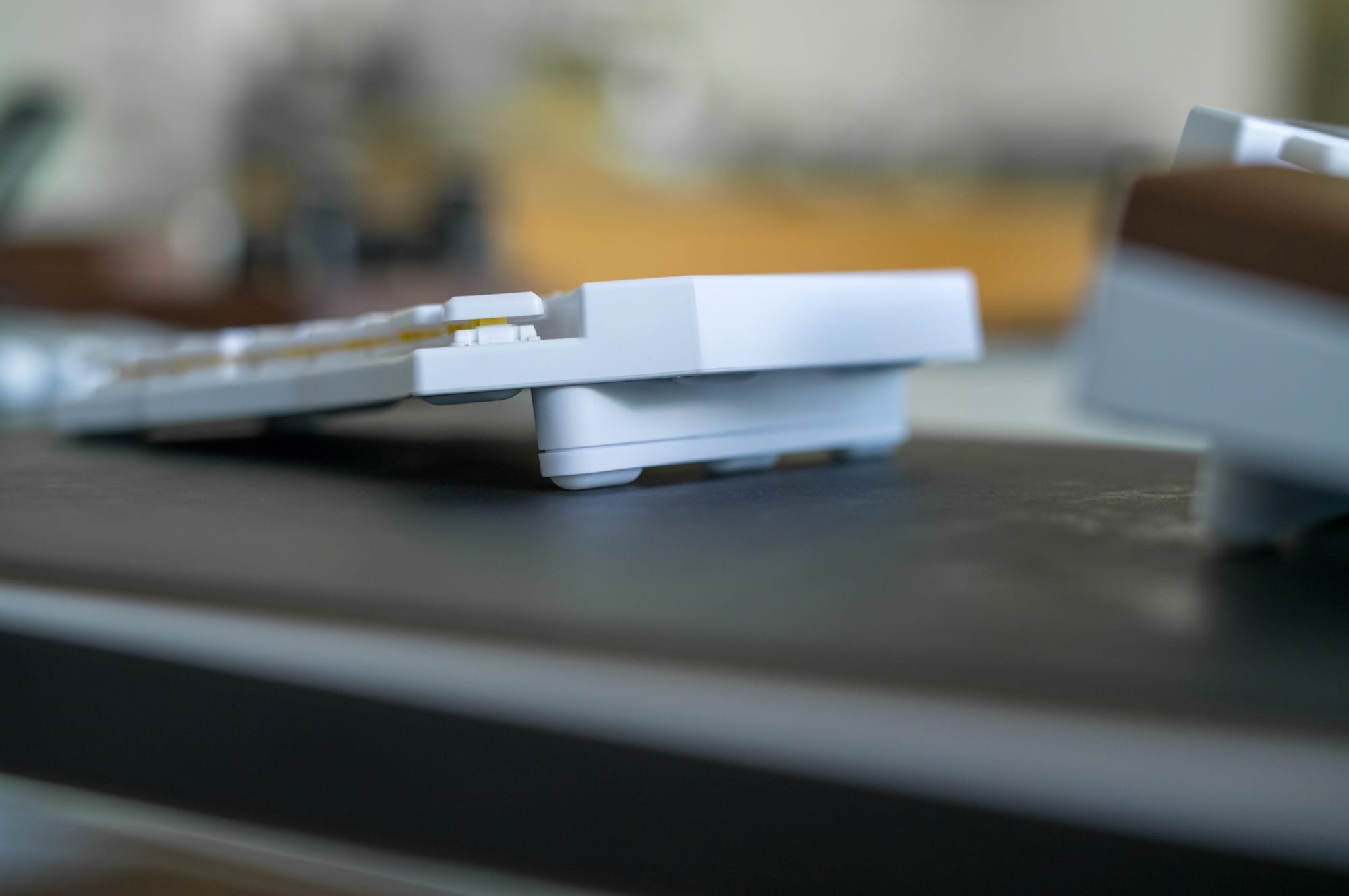
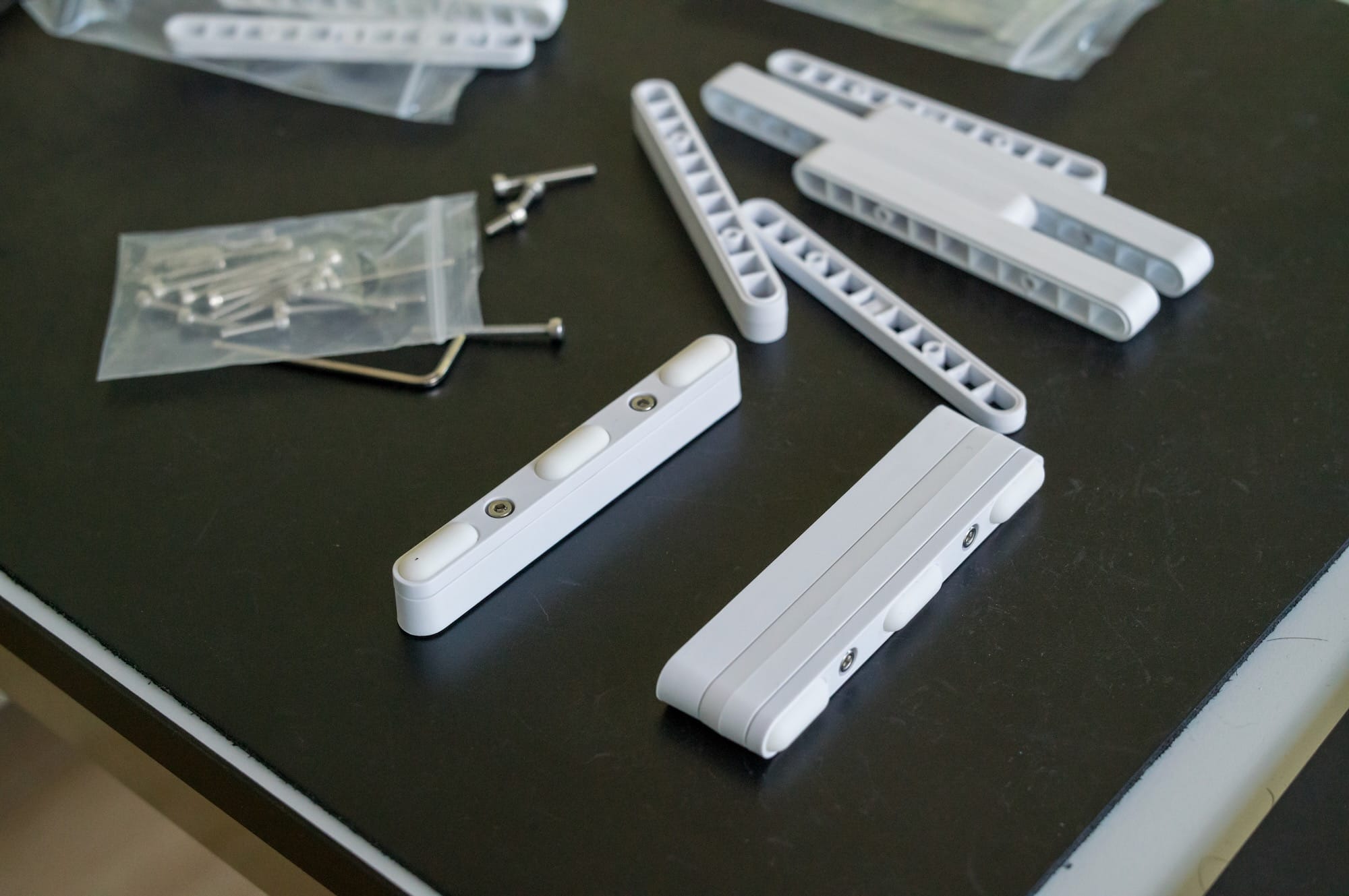
Btw, the palm rest already comes with some tenting builtin, so I hadn't the need for adding the magnetic pieces, but it's there if you want to use.
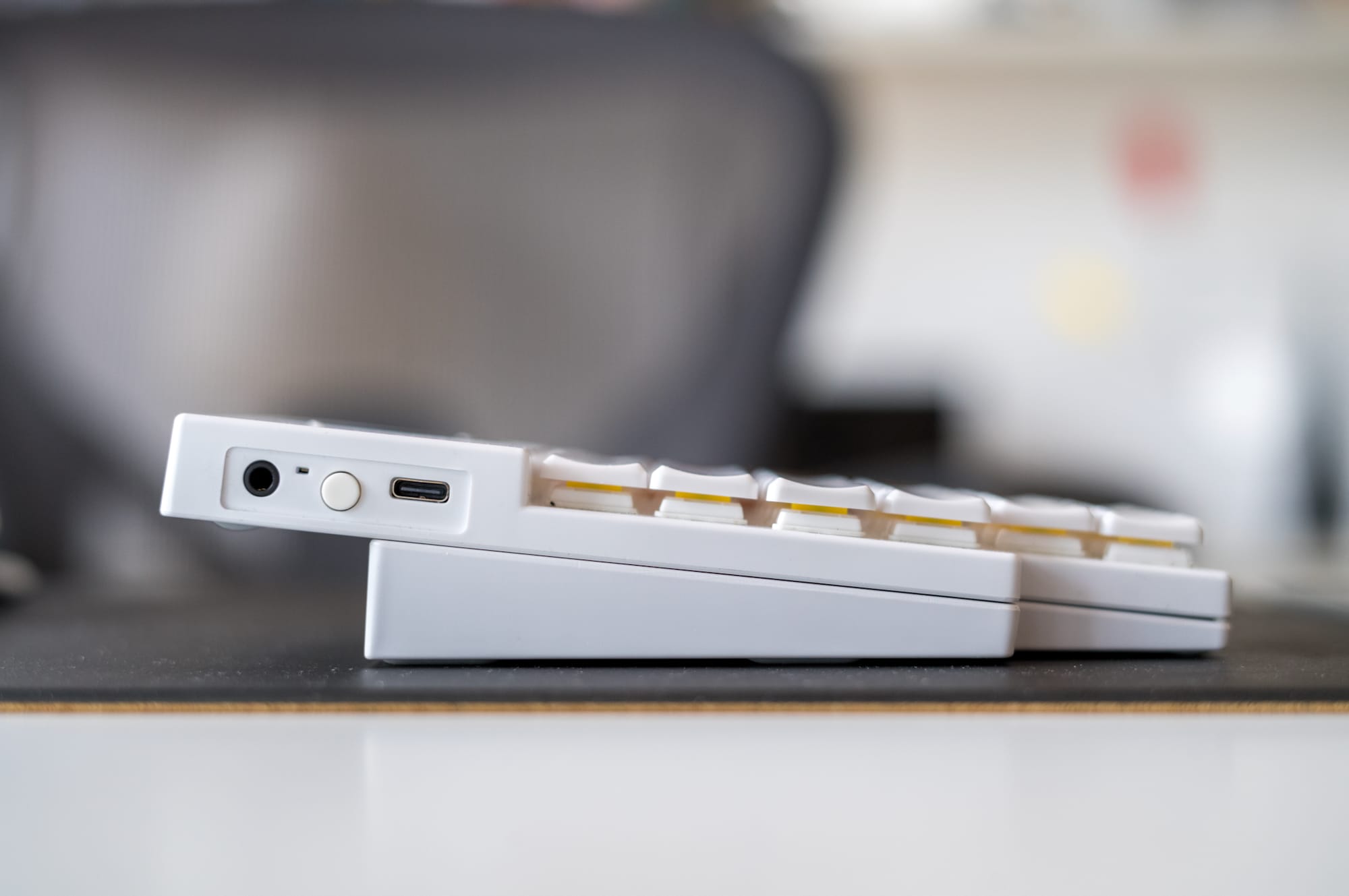

The palm rests are also tightly tilted.
Palm rests
The Go60 also has optional walnut palm rests. MoErgo positions them as part of the desk setup, so the same keyboard can be used both as a travel keyboard and as a main keyboard. The palm rests attach magnetically, have their own tenting system, and use a seven-step tenting range from 6 to 21.5 degrees.
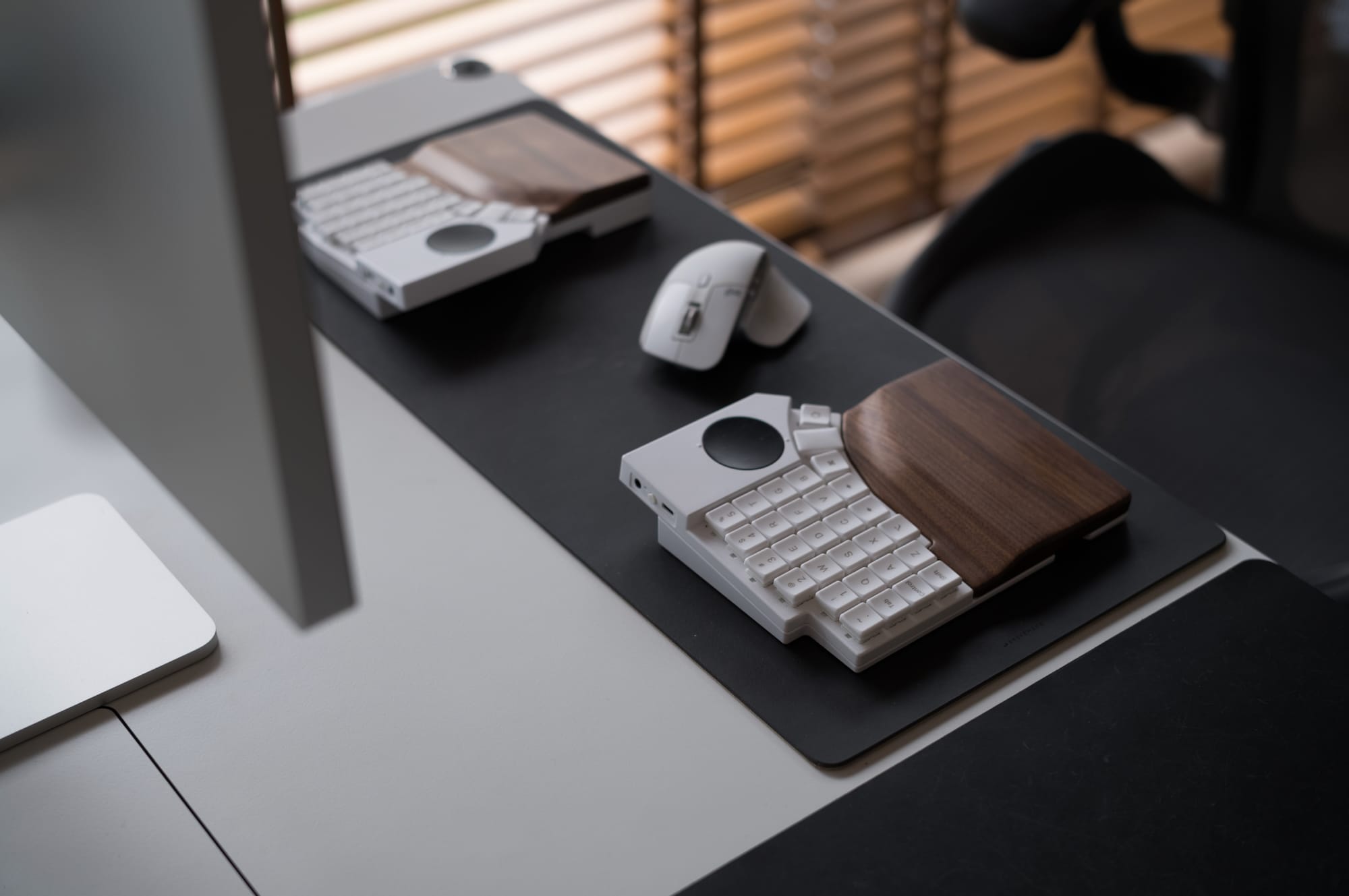
I like this idea a lot. And it's exercised really nicely.
Here is how you can detach and attach the Go60 to the palm rest.
With this setup, the keyboard itself stays portable, but when you come back to your desk, you can dock it into a more comfortable setup. The walnut also makes it visually warmer. And it looks great on any desk. Everytime I posted a picture on X, people would just compliment it. I’m a big fan of natural materials as well.
Having said that, walnut also means maintenance. MoErgo says the palm rests need regular waxing and maintenance, which is expected for natural wood. We'll see how it'll age with time.
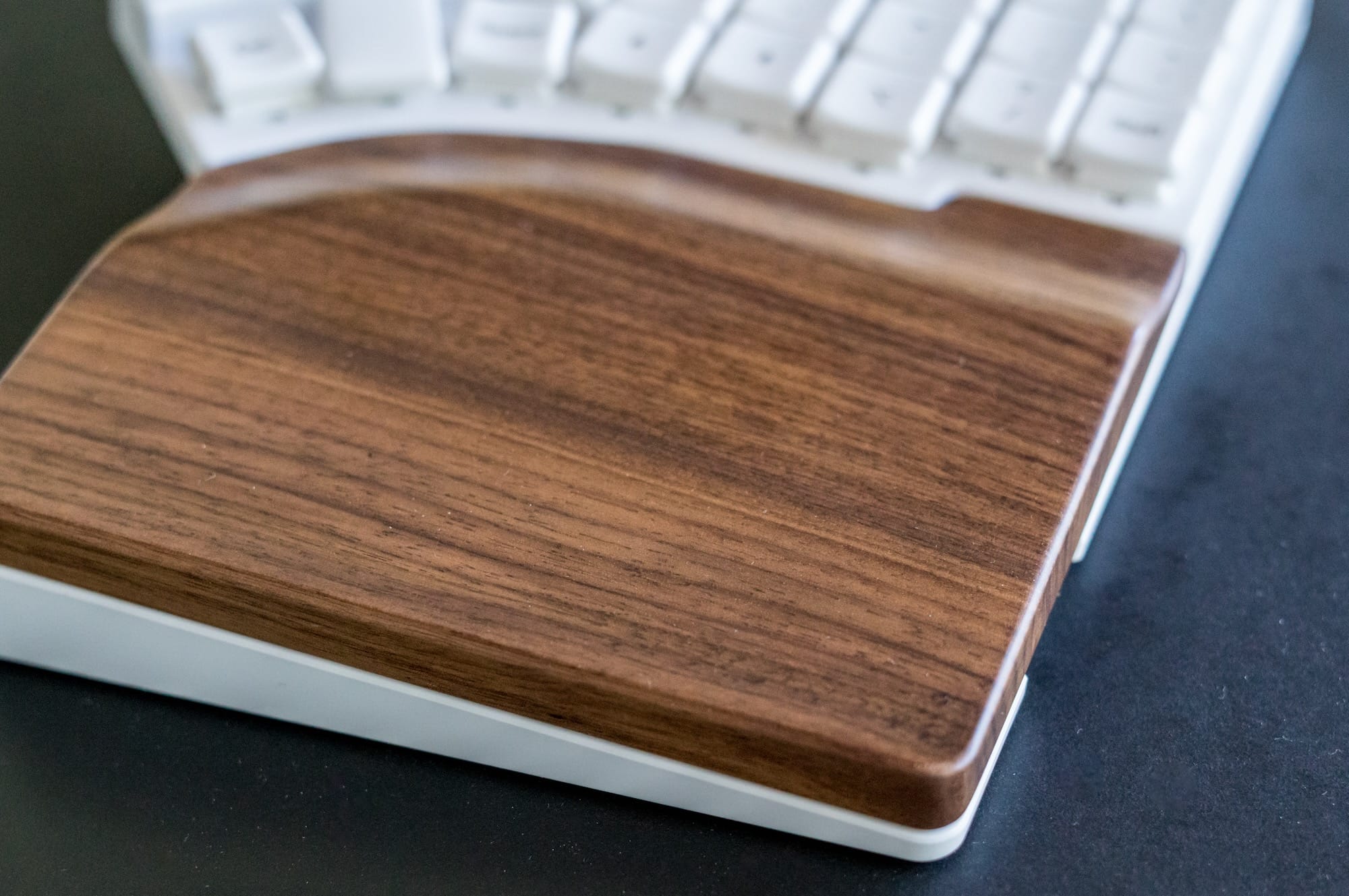
Using it for the past month, I can say it's pretty comfortable. It's better than plastic wrist rests. However, because it's very smooth, and if you're like me, typing while your wrists rest all the time, they glide quite a bit. This is especially true when tenting is enabled. There is no resistance at all. This isn't a big issue, but if you have an aggressive tenting, you're not be able to rest and write at the same time.
But one thing I appreciated, because it's very smooth, it's actually easier to reach keys. It implicitly comes with some ergonomic benefits.
Ergonomics
Let's talk about ergonomics a little. What do I mean with ergonomics? It's the way our hands reach the keys. A keyboard can be split, which is a plus of course and that's why people choose it. The reason is that instead of squezzing your shoulds and aligning your hands in the center of your body, you can now easily rest your hands in the same level of your arms.
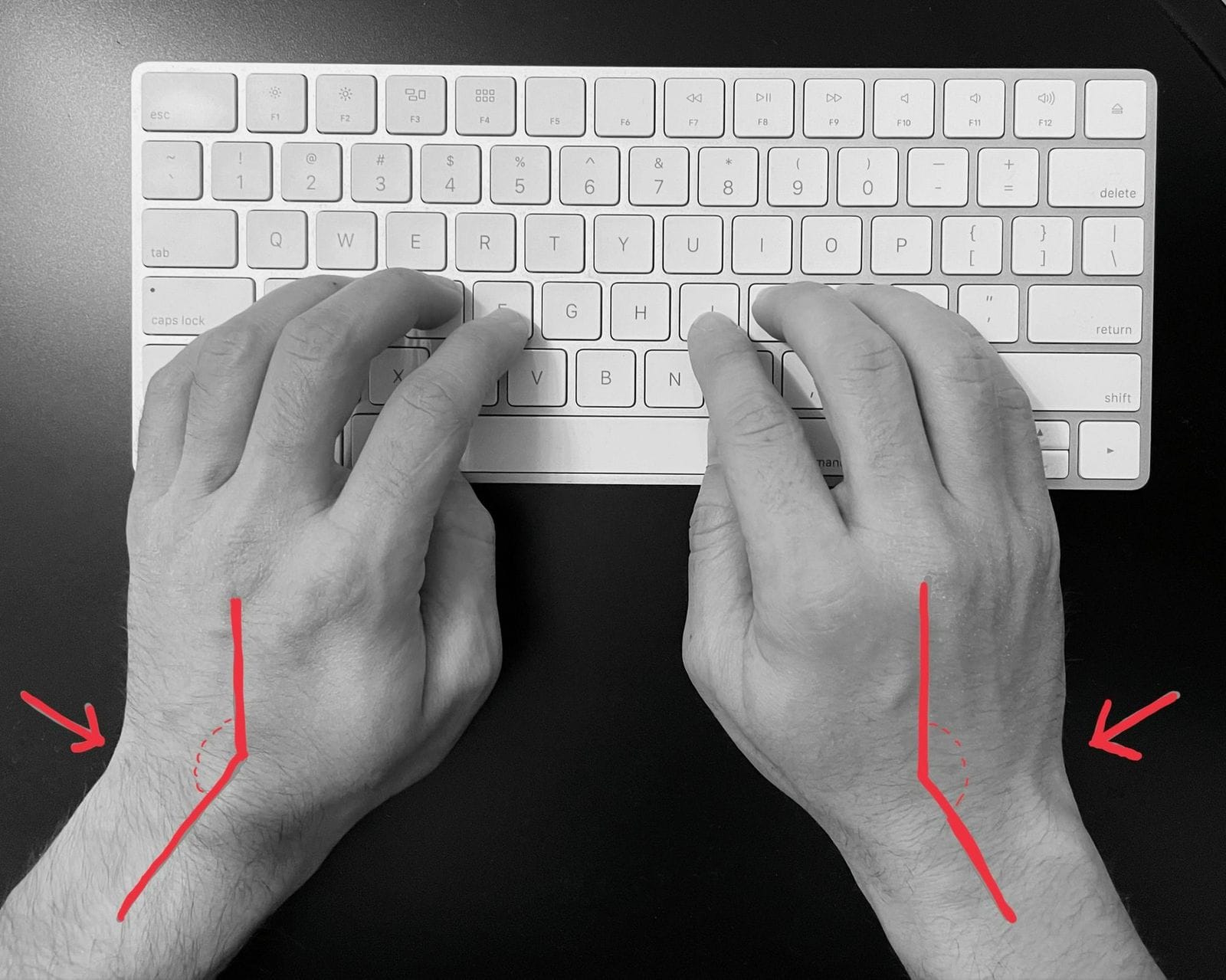
Of course that's only one part, the second part is that whether the keys are staggered or ortholinear (and for ortholinear, are they column staggered?). Lately, the keyboard crowd and community decided that ortholinear is more comfortable than a typical, traditional staggered keyboard. Because your fingers can move up and down easily. It takes time to get used to it, but it's better once you start using it.
Now finally, because our fingers have different lengths, you can stagger the columns. A column-staggered keyboard aligns the keys in vertical columns that match the different lengths and natural vertical movement of your fingers. So as an example, your pinky finger can reach the key Q or P very easily.
I have small hands, and I like Go60's layout. It's ortholinear, and has a nice column-staggering, just perfect for my hands. Some keyboards are less aggresive, some are too aggresive, but the Go60 is really perfect here.
Lastly, all the keys in the thumb cluster are very easy to reach. One thing for example I didn't like when I had the Moonlander MK1:
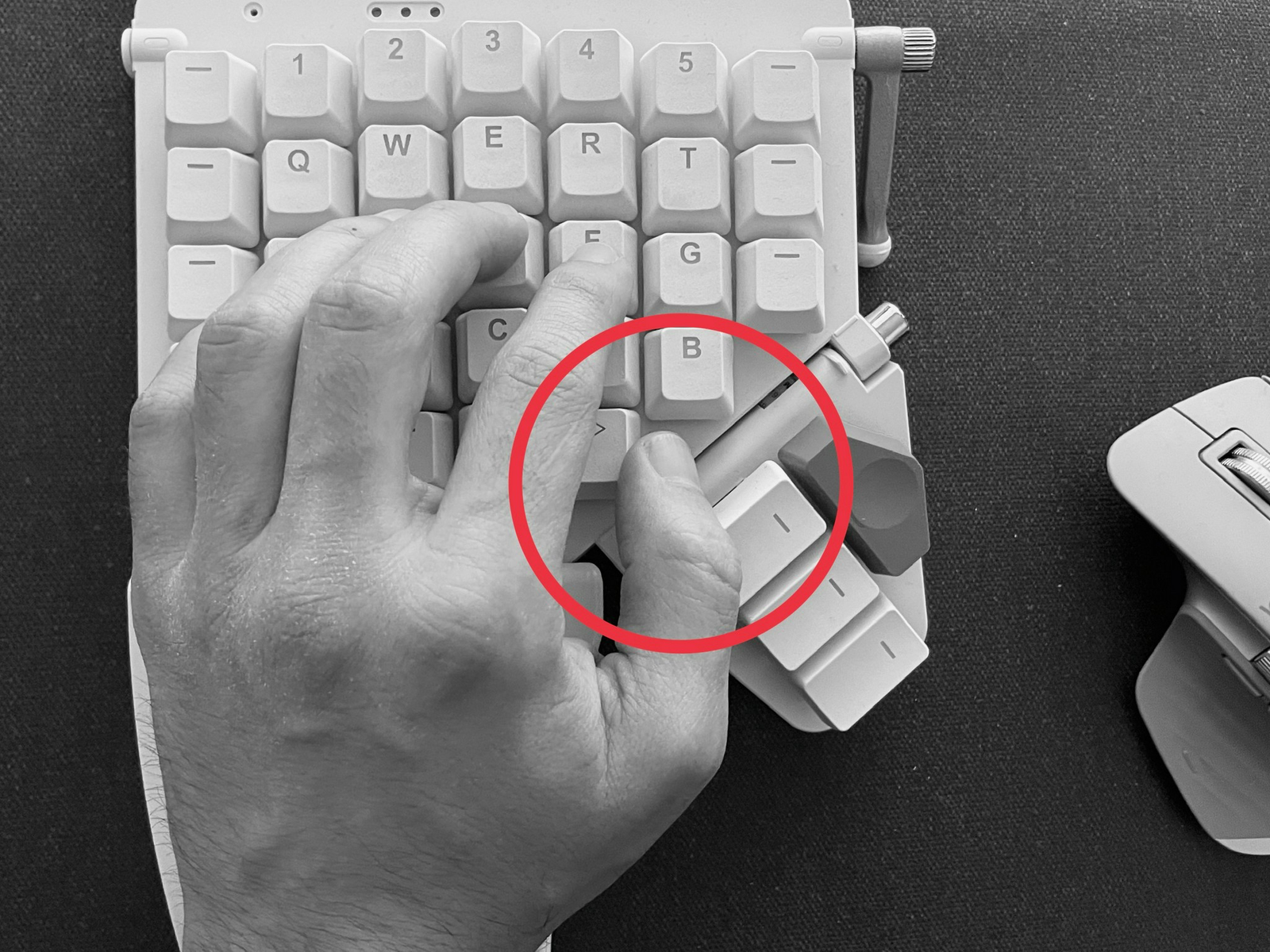
You can see how far the thumb clusters are when my hand is in it's natural position. Now here is how it looks like with the Go60:
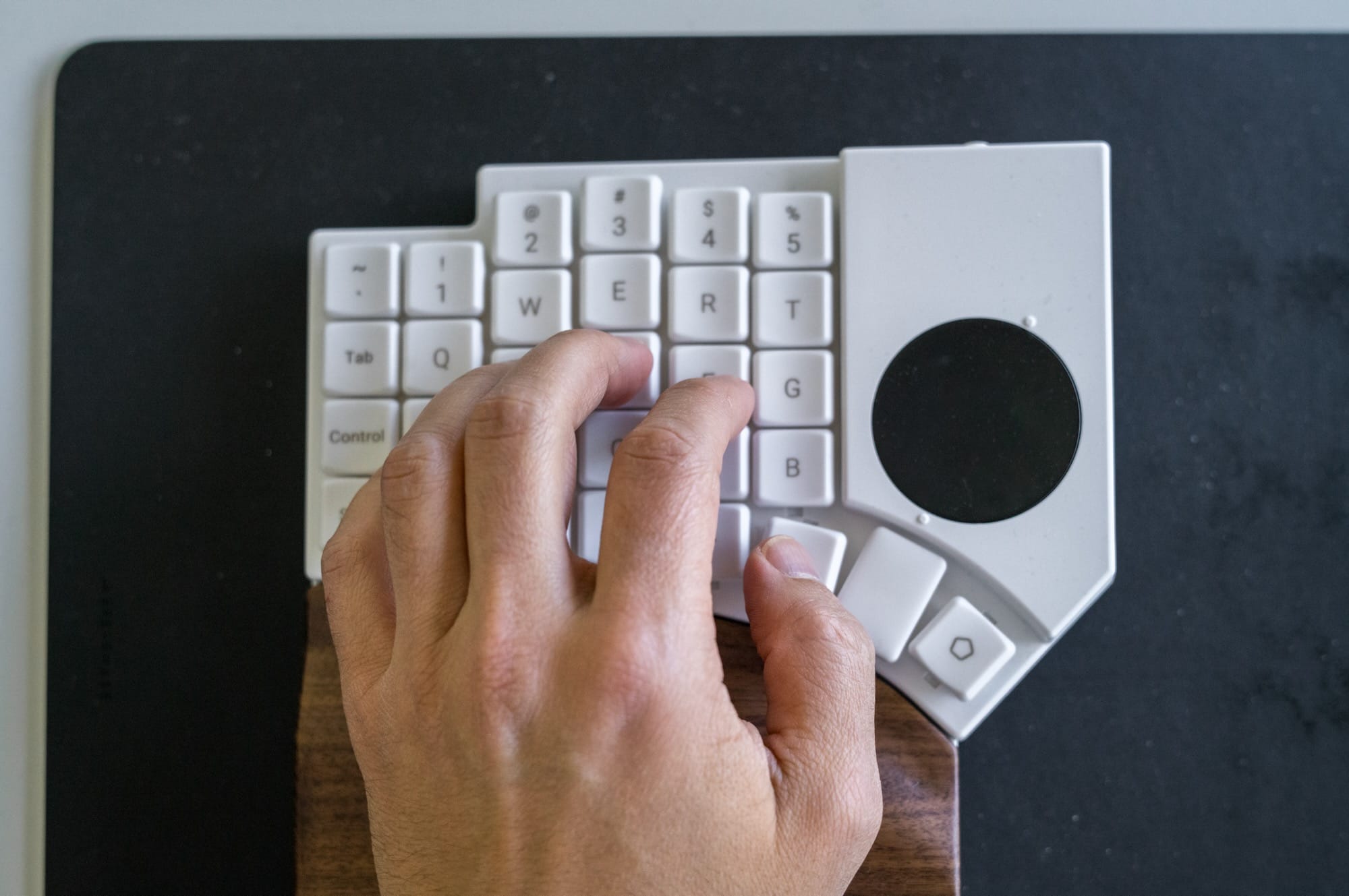
You can see that all my fingers rest on it easily, and that my thumb already rests on the first key of the thumb cluster. It's actually right underneath of my keys.
Of course, compared to the Glove80 or my Kinesis keyboard, it doesn't have a concave key well. Those are a step further in terms of ergonomics. But Go60 from the beginning aimed portability, so there are tradeoffs. But I have to say, even though I have all these keyboards, I still use my Go60 as a daily driver because how light and fast I can type on it. A combination of the switches, keys and layouts makes it a joy to use for me.
Portability and Travel Case
If there is one thing to focus on this review, it's probably the focus on the travel case. Stephen, founder of MoErgo said this to me during a talk:
We have spent a lot of effort to make sure it is quick to set up and to put back into the bag, when one is on the road.
And it's really is like that. The yellow travel case is superb, allowing you put the split keyboard in your backpack and be done with it. It's so fast and easy, honestly I love it. You know how I did not like the huge travel case of Glove80, but this is completely different. Here is a video on how you can pack it:
Wireless, wired mode, and battery
The Go60 supports Bluetooth LE 5.0 and can connect to four Bluetooth devices plus one USB device. It can also switch to wired split mode over TRRS, which is useful in environments where wireless is not allowed or reliable enough. The past weeks I explicitly used it over BT, and had zero connection issues (using latest macOS). It's rock solid.
Not sure if you remember, but the initial version of he Kinesis Advantage360 Pro had connection issues for me. When I tried the Glove80, it was much better. Go60 just follows the good steps.

In terms of battery, MoErgo lists two user-replaceable 1000mAh LiPo batteries. Their estimated battery life, with LEDs off, is 1 to 2 weeks for the left hand and more than a month for the right hand. The left part is the main controller, so it does more work. However for me, I didn't charge the left part for straight 3 weeks, and It was still working fine. So I think those numbers are just worst case scenario.
One thing that I realized is (Check my Comparisons section at the end of the post), is that Go60 is the first and only wired and wireless split keyboard without the need for a complex dongle setup. The palm rests are there and work with magnets, and they've executed it superbly.
I know some people also prefer wired over wireless (for latency reasons, or security reasons), you also have that option. You can even dynamically switch between wired and wireless if you want.
Firmware and layout editor
The Go60 uses ZMK, which is good because I already use ZMK. MoErgo also says Glove80 layouts can be imported to Go60 and vice versa. This might be a nice advantage for existing Glove80 users.
I usually don't like importing things, so I just started from scratch. (I do the same when I buy a new iPhone, always do a fresh start)
When I reviewed the Glove80, I spent a large section explaining my custom ZMK configuration. I had my layers, Hyper key, Vim-like navigation, sticky shifts, and symbol layer. And I just did that with the Go60 as well. Of course because there is no longer the additional 20 keys anymore, I had to move certain things to a second layer, such as my volume or brightness setting.
One thing that I really love is the new online layout editor. It's been some time since I've used it, but they made it more usable. For example there is now a default HYPER or HYP key you can use. Or you can easily chain command keys.
I still have three layers. First of all, here is the factory default for macOS that my layout is based on: https://my.moergo.com/go60/#/layout/go60-macos and you can find my custom layout here: https://my.moergo.com/go60/#/layout/user/f31b279e-369a-4d2a-84b2-e54a8a87b56f
Let's start with the base layer:
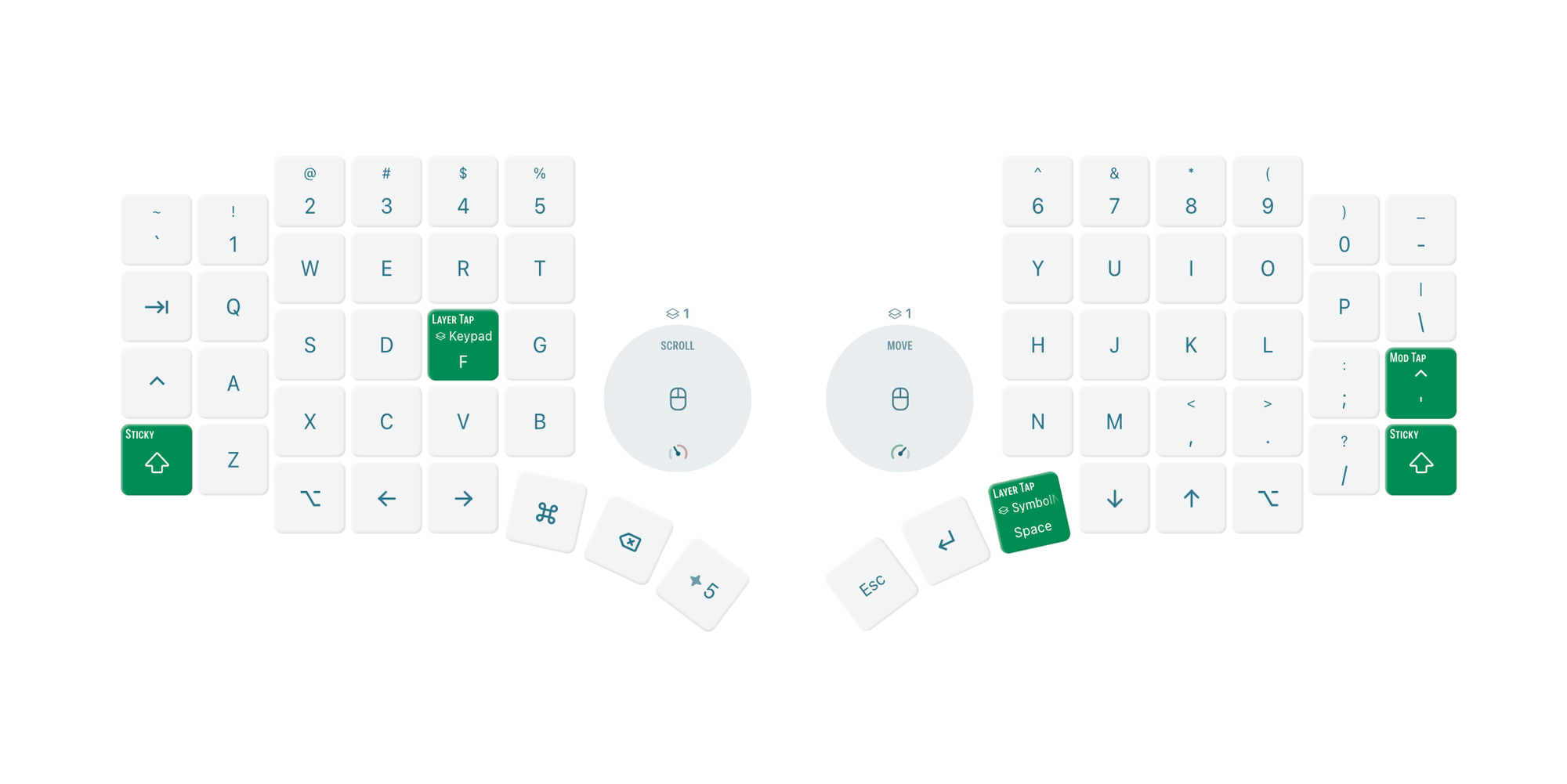
- Left thumb cluster, there are three important keys, in order from left to right
- First is Cmd ⌘. It's used so much, it had to be the first key
- Next is Delete. Again I delete a lot, and it's more ergonomic.
- The last third is HYPER + 5. Hyper means just pressing ctrl + alt + cmd +shift at the same time. It's really difficult to press all of these together, hence you can use them to create shortctus. For example Hyper + 5 opens for me my screenshot app (Cleanshot X).
- Right thumb cluster, there are the next three keys that I use a lot, in order from right to left:
- First is Space. But it's also a layer tap. Meaning pressing it once: Space. If I hold it though, it switches to the Symbol layer, and I can easily output any of the symbols from the Symbol layer.
- Second key is Enter.
- Third key is Esc. This is not widely used (I use ctrl-c most of the time), but it's handy having it
- I have two shifts on both sides, but I changed the Shifts to Sticky Shifts (via the
&skparameter). It's still a shift, but you don't have to hold it forever. Instead, you can press the shift and then jump and press another key. The shift will be applied to that character. This is very handy for characters far from the shift key. - The
'quote key above the RSHIFT key is a mod-tap. It means holding it means Ctrl, but tapping outputs the'or"characters. I found it very ergonomic to have the Ctrl key on both sides of your keyboard, and depending on which Ctrl key combination I use, I use the opposite Ctrl key. So ctrl + p means I press the left ctrl key and the P key. Ctrl + a means I press and hold the right"key (which triggers the right ctrl when holding) and the A key. - The F key is a layer tap. Holding the F key switches to the Lower Keypad layer. More on this below.
- Previously I had to define several constants in the ZMK firmware, such as
HYP,HYPERandMACLOCK. But the new online editor has prebuilt defaults for these, so I no longer have to do it.
Now the Symbol layer:
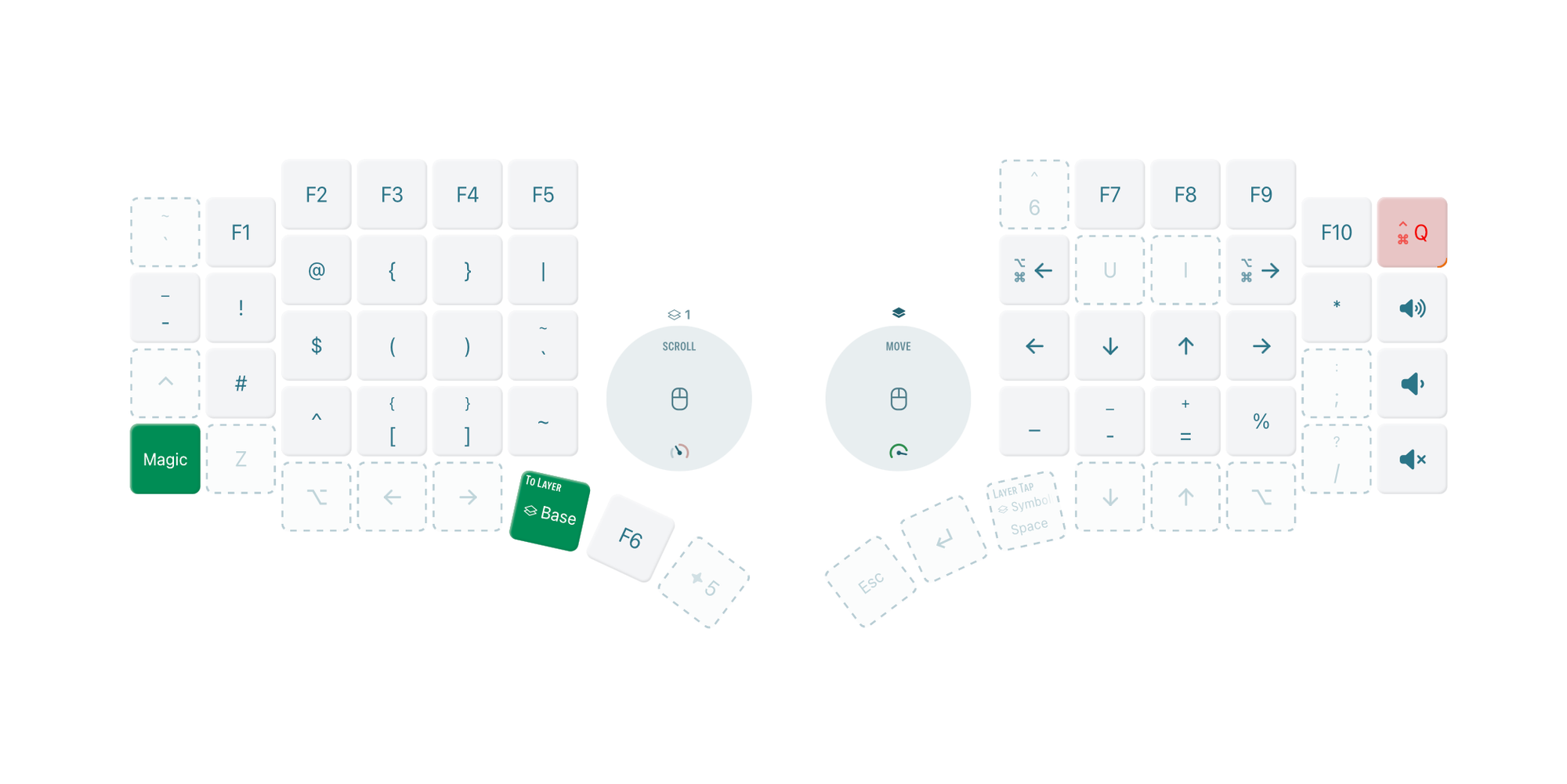
- As I said earlier, the Space is a layer tap, and holding it switches it to the Symbol layer.
- The whole symbol layer contains a set of all my highly used symbols. Holding Space and pressing a key on the left half of my keyboard prints symbols like
! @ # $ % ^ & ( ) { } [ ] | ~ `Once you get used to it, it's much faster than using Shift and numbers to print them. - On the right, I use VIM-like navigation arrows. Hence, I can easily navigate by pressing the holding space and using the HJKL keys.
- On the right most, you can see four keys. The first is Cmd + Ctrl + q, which locks my Macbook. The others are for increasing/decreasing and muting the volume.
- I also have two keys about the HJKL keys, which are used for navigating Browser tabs.
My last layer is the keypad layer:
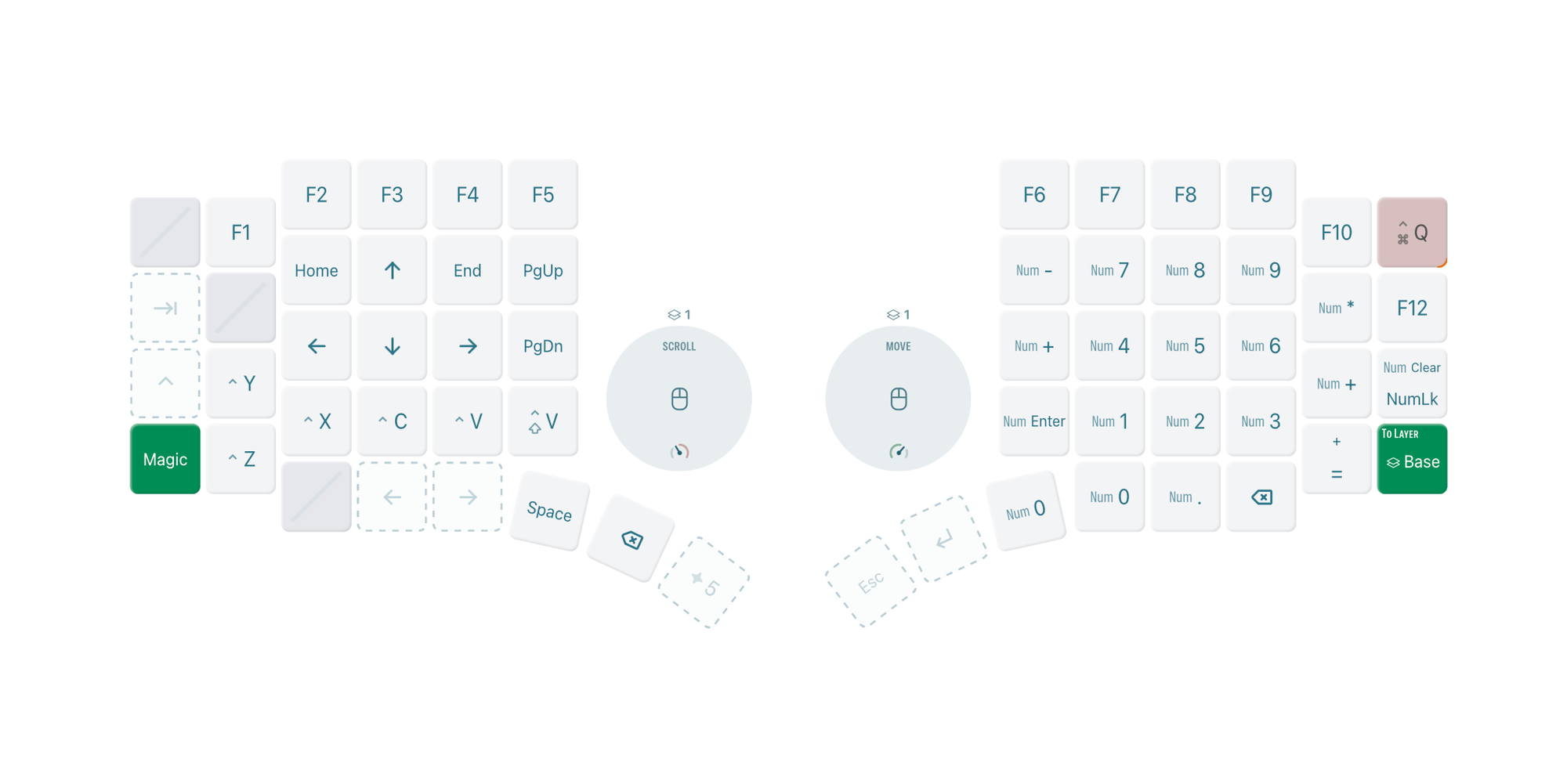
You can see that when I press F on my left side, the right side becomes an handy keypad and I can easily enter numbers without having to reach the numrow.
As you see, my layout is not that crazy. But if you want, you can go crazy. A vast community builds custom layouts with a more sophisticated setup. One example is using home-row mods: https://precondition.github.io/home-row-mods
If you have seen my layers, I use the F key similar to a home row mods. But the home row mods are a far superior but complex layout. I'm thinking a lot about implementing it in the future.
Lastly, I changed some of the configurations for my &mt and &sk parameters:
&mt {
    tapping-term-ms = <180>;
    flavor = "tap-preferred";
    retro-tap;
};

&sk {
    release-after-ms = <2000>;
    quick-release;
};
These settings can be read from the ZMK documentation website and must be adjusted according to your typing speed. So read the documentation and tweak them (or remove them) to your liking.
Custom mounting
MoErgo also sells a Mounting Puck for the Go60. It uses the standard 1/4”-20 UNC tripod mount, which means you can mount the Go60 using photographic gear, clamps, tripods, and other setups. Just like with the Glove80, or any other split keyboards, I never got into it. But it's there if you're into it. Because I did not test this option, nor did I have any interest in it, unfortunately there is not much I can tell here. But it's there if you ever need it.
Comparisons
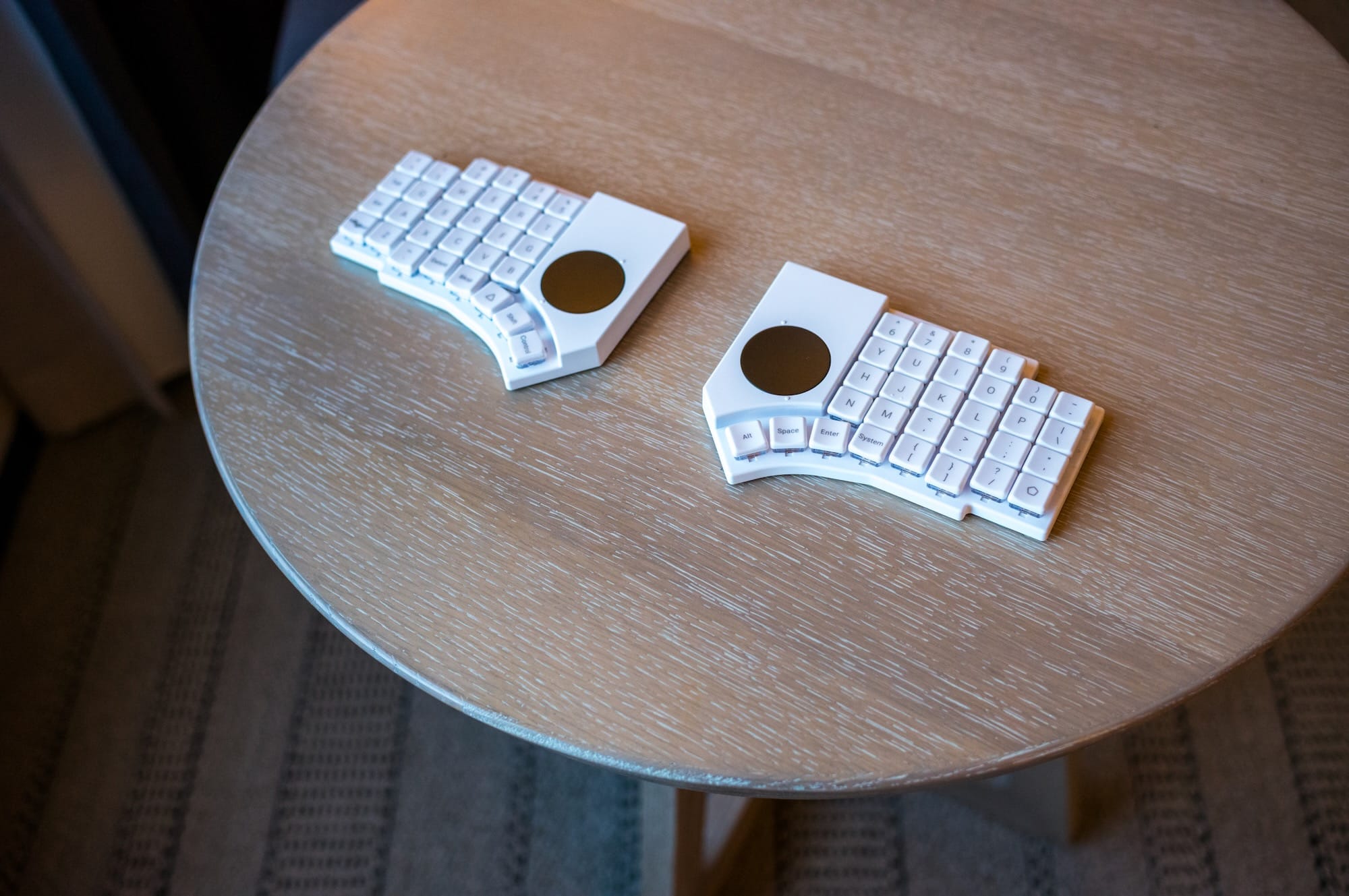
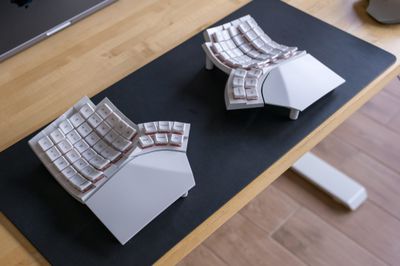
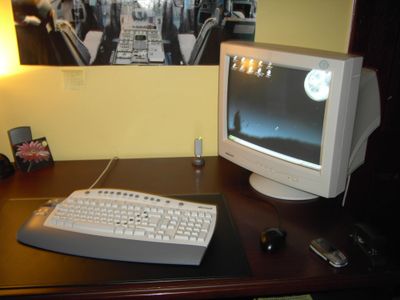
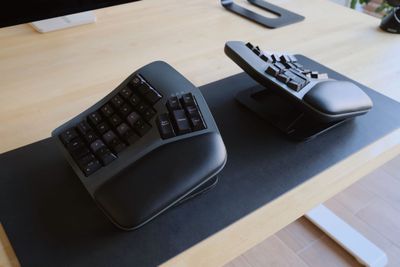
I have several other split keyboards, and even designed one myself. Some of them are here:
Comparison to Glove80
Let me straight say this: I don’t think the Go60 replaces the Glove80. They are completely different in terms of ergonomics and usage. Glove80 is definitely more ergonomic, has more keys, and the concave key well is superior. On the other hand, the Go60 wins on portability, more refined and premium design, and the ability to change switches.
Having said that. I miss the additional keys I had with Glove80. I had dedicated keys for volume, brightness, locking my MacBook and so on. With the Glove60, I had to move them to a second layer. It's still doable, but it's not as comfortable as the Glove80.
Comparison to Kinesis Advantage 360 Pro
Everything I said with Glove80 also applies here. These are very different keyboards, so keep that in mind. Compared to the Glove60, the build quality is on the same level, maybe a tad better. But at the same time, it feels very bulky, and the switches of the Advantage 360 Pro are really bad. This is coming from someone who tried their Clears, Browns and later even desoldered and soldered with custom Gatherons. Still, I don't like how it sounds. The Kinesis might be ergonomic, but the company I think never gave enough attention for "how" it sounds. This is something more and more keyboard companies look into, and customers except good sounding keyboards.
The Go60 at least allows you to hotswap the switches.
Comparison to Elora Halcyon
Well again not sure if they are comparable, but at least the Go60 is more similar to the Elora, than say the Glove80 or Kinesis. First of all just like the Elora, the Go60 is flat. But there ends the changes. The Elora Halcyon, just like the Go60, has several nice feature that makes it a compelling alternative and one that is a red flag. First of all, the Elora is hotswappable, not only that, you can also change the display, encoder and add a touch pad, on both sides! It's truly modular. It has more thumb keys, but I've found out that not so important. In fact, I wish it had only a single row, so I could use 1.5u or 2u keycaps. That's not possible.
On the other hand, the Elora is not wireless at all! So it's not portable. It's the only split keyboard I have that is not wireless. Second, Elora doesn't come pre-built, and you have to basically built it yourself. It also doesn't have a proper case and really feels like a DIY project. I had to design myself one, for more information see: https://arslan.io/2025/07/05/hyper-case-designing-my-own-keyboard-case/
Comparison to Voyager
I don't own a Voyager, but I've used it briefly when I was in SF, in our office. There we have a wall of mechanical keyboards employees can pick up and start using. Voyager was one of them. Because I don't own one, my impressions of it are not based on long term usage. Please keep that in mind.
The only thing I can say for sure is, it's wired and having two cables dangling in the desk compared to the Go60 is awkard. I really started liking the Go60 just because it's wireless. Second build quality wise the Voyager is pretty good, on par with Go60, but Go60 wins here with the wooden palm rest. It's really elevates the whole setup. Third, I love that the Go60 comes with a third key in the thumb cluster. Personally, I need at least three buttons in my thumb cluster (See my layout above). I previously used a Moonlander from ZSA, and one thing I like, they have a dedicated app and flashing a firmware is really very ergonomic. I think it's the same for Voyager, so that's a plug. Lastly, Go60 has things like a portable case and trackpads, which are bonus perks of course. But Voyager allows you to add Trackpad or a Trackball in a modular fashion, so that's a nice property. In overall, I think Go60 wins here!
But again, keep in mind that's based on just a few weeks of impressions.
As you see, I can't say one of them is better than the other one, but the Go60 does a few things that none of them do, which is bringing premium quality and being portable at the same time. It's a rare combination honestly.
Verdict
When I started using the Go60, the question for me was whether it can make ergonomic typing portable. That’s a much harder problem. Many ergonomic keyboards are comfortable, but not portable. Many portable keyboards are portable, but not ergonomic. The Go60 tries to sit between these two worlds.
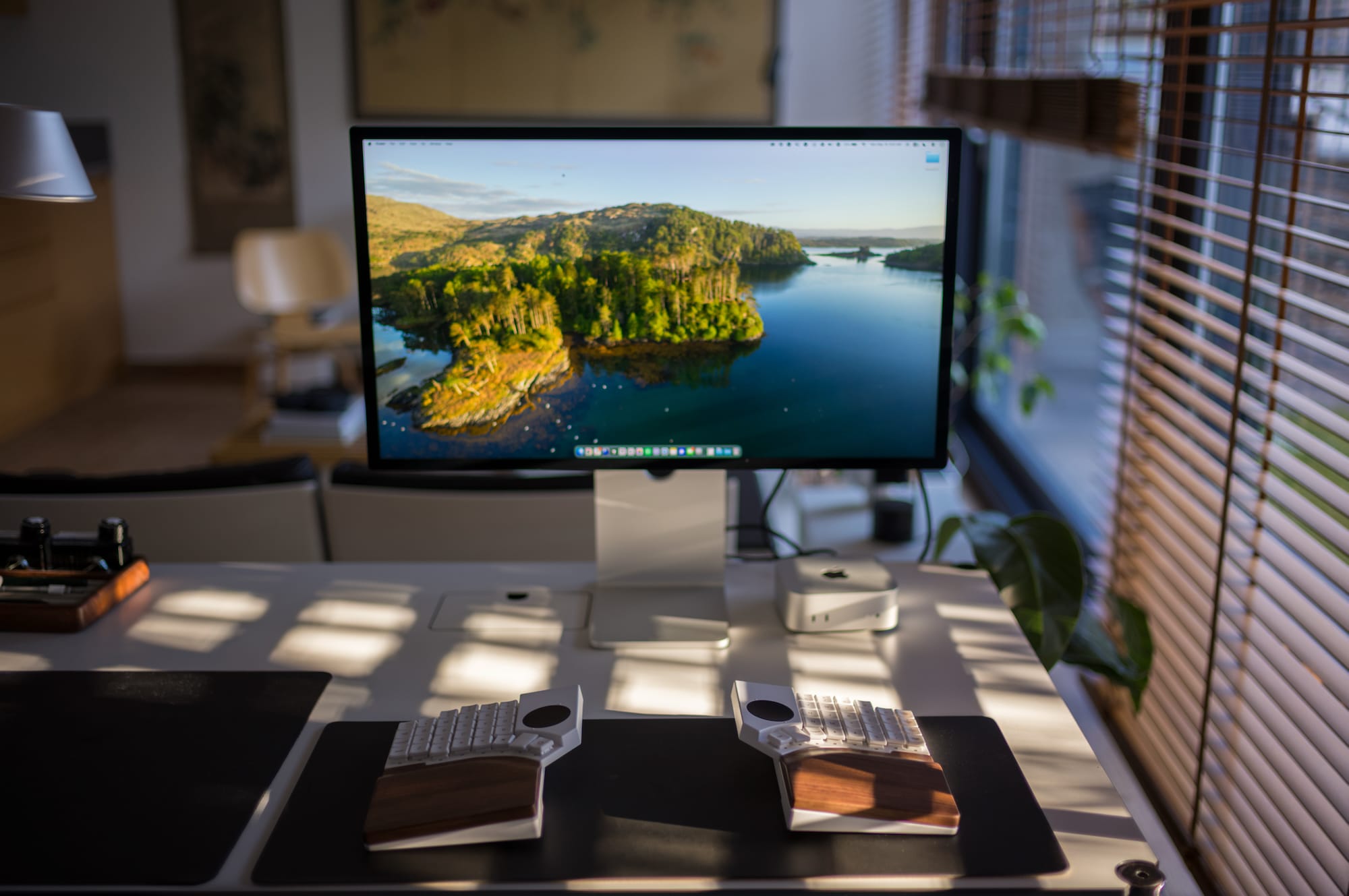
I'm now using the keyboard for almost 4-5 weeks and since I've got it, it's my daily. The main reason is that I love the 1.5u keycaps, combined with the low level Choc keys and the premium build. It just speaks to me. To be honest, I really set my expectations low, because I didn't think it would replace my Glove80 or Kinesis.
But here I am, and I'm typing these lines with my Go60.
I would say, get it if:
- You already use a split ergonomic keyboard and want something portable.
- You travel often and don’t want to carry a mouse.
- You like ZMK and custom layouts.
- You want one keyboard that can move between desk and travel.
- You want modularity and a hot-swappable keyboard.
Don’t get it if:
- You want the maximum comfort of a concave keywell.
- You don’t like configuring layouts.
- You want a traditional mechanical keyboard feel.
- You don’t travel or move around much.
If you made it here, thank you! I spent weeks on this review. If you find anything unclear, feel free to sent me an email or ask on X: https://x.com/fatih
Lastly, I want to also thank Stephen, the founder of Moergo guiding me to pick up the Go60 and sending me extra switches for testing. He made sure I could get the keyboard ASAP while I was on my trip to SF, U.S.